

Appearance
Create an SMS template
For merchants
An SMS template is the text of one text message — for example the SMS a customer receives when they place an order. You write it once; the plugin fills in the customer's name, the order number and other details each time it is sent.
Each SMS template belongs to one event. The events are the same list Shopware uses for its emails (Order confirmation, Enter delivery state: Shipped, Customer password recovery, …). That keeps every SMS paired with the email Shopware already sends at the same moment.
What you need first
- The plugin is installed and a provider is configured — see Installation and Configuration.
- A user account with Administrator rights in the Shopware Administration. (Other roles cannot open SMS templates in this version — see Known issues.)
A template on its own sends nothing. After creating it you add it to a flow — see Send SMS from a flow.
1. Open the SMS templates screen
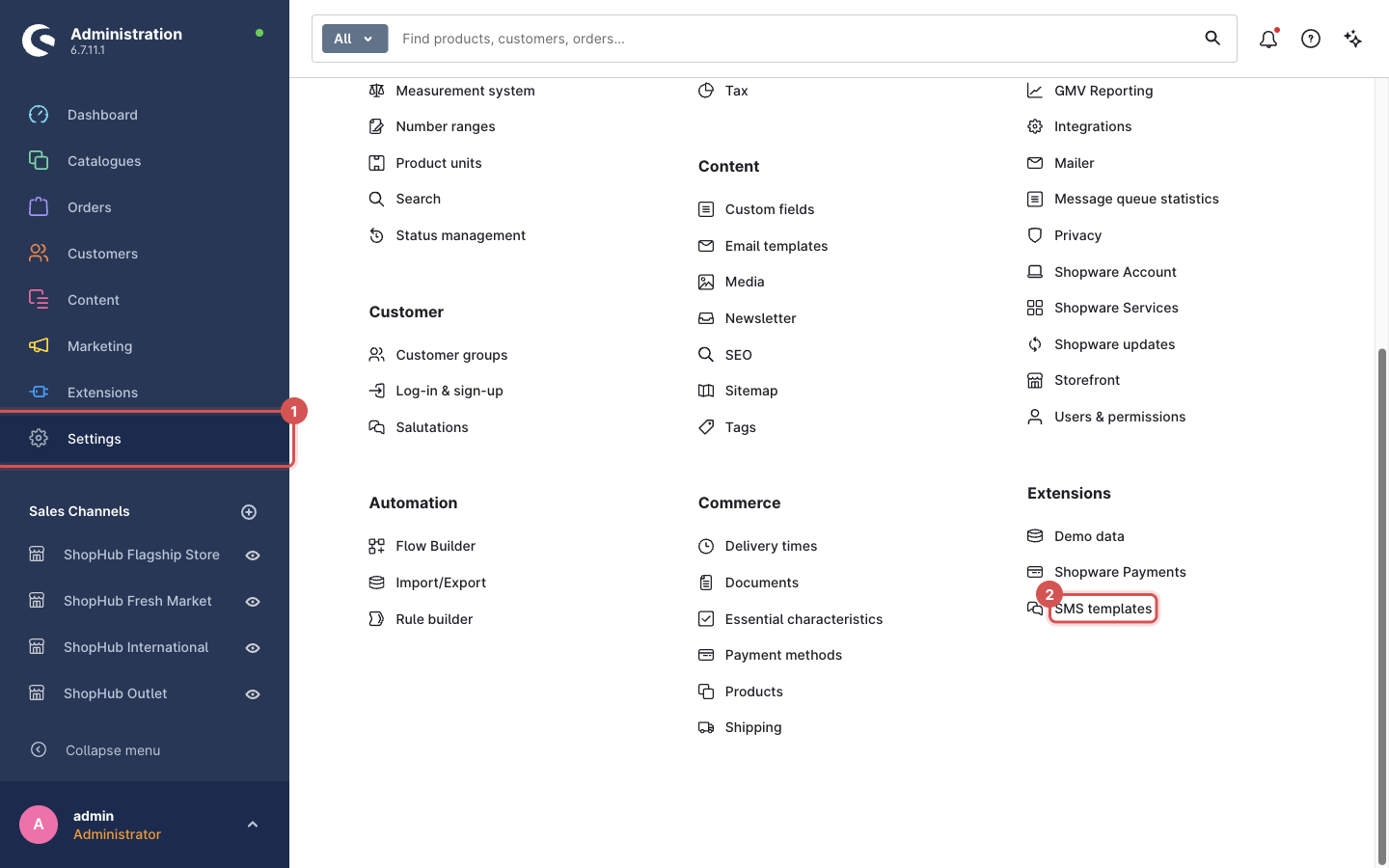
- In the left-hand menu of the Administration, click Settings (1).
- Scroll down to the group Extensions and click SMS templates (2).
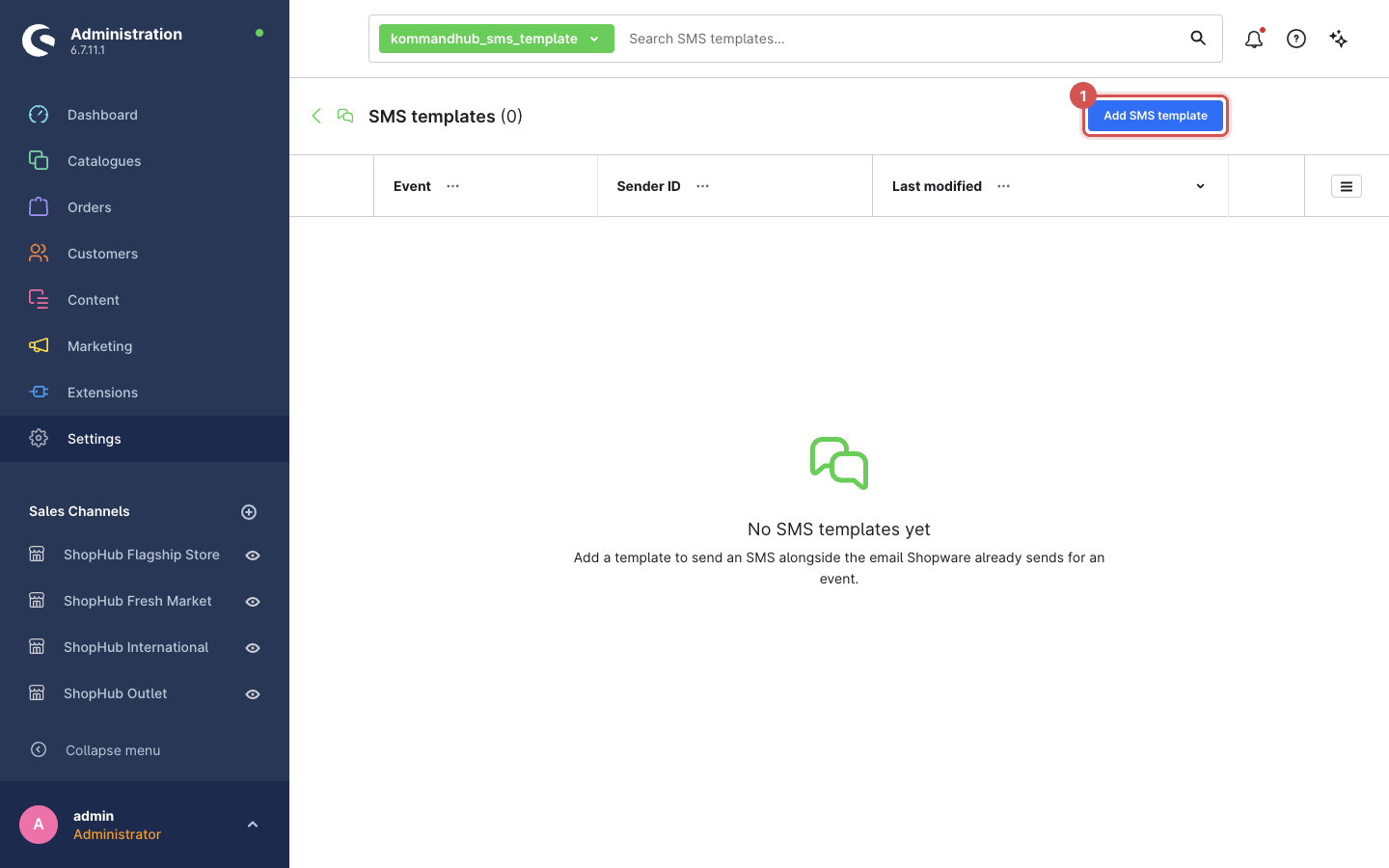
The first time, the list is empty and says No SMS templates yet. Click Add SMS template (1) in the top-right corner.
2. Fill in the settings
The New SMS template screen has two boxes: Settings at the top and Message below it.
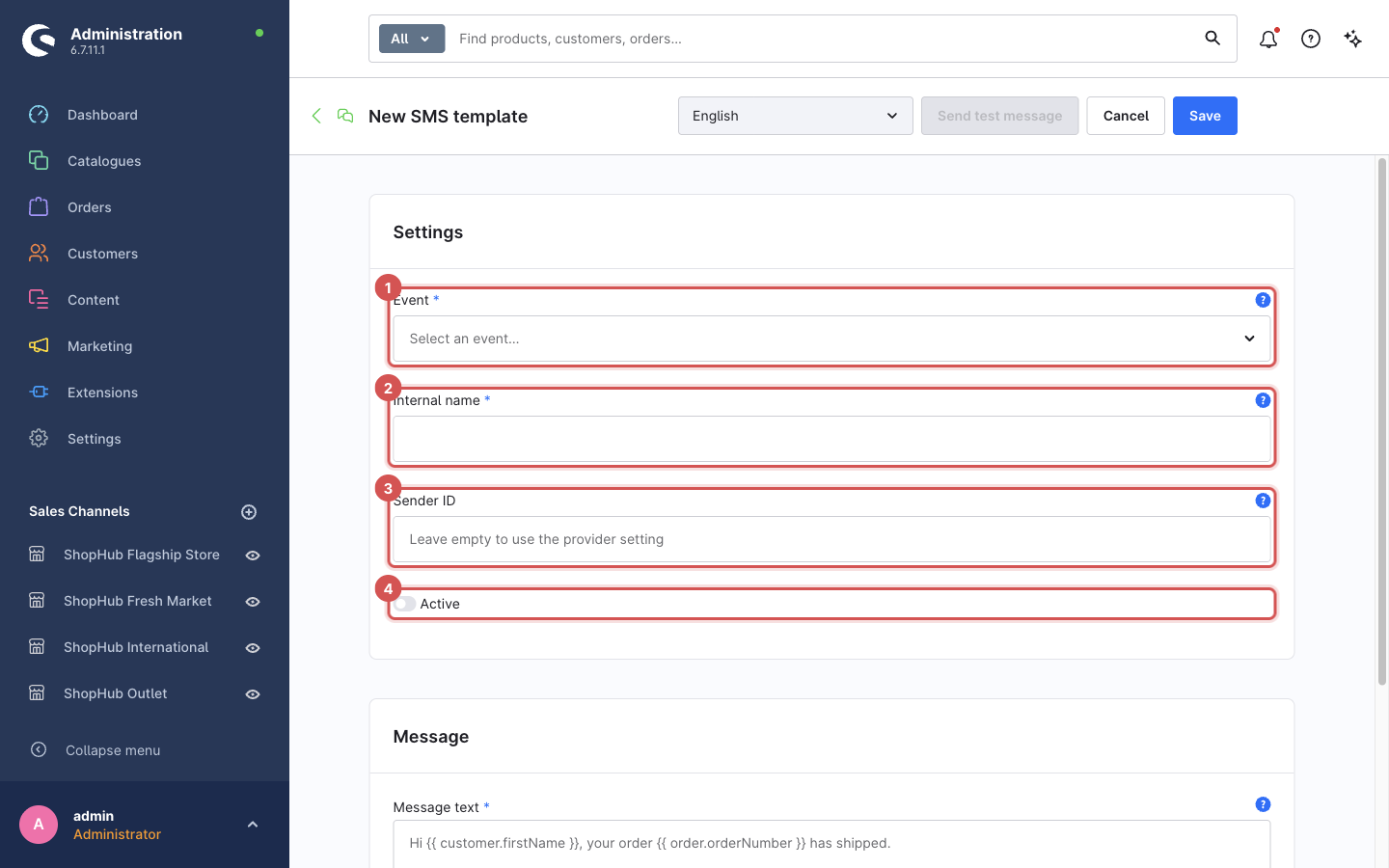
| # | Field | What to enter |
|---|---|---|
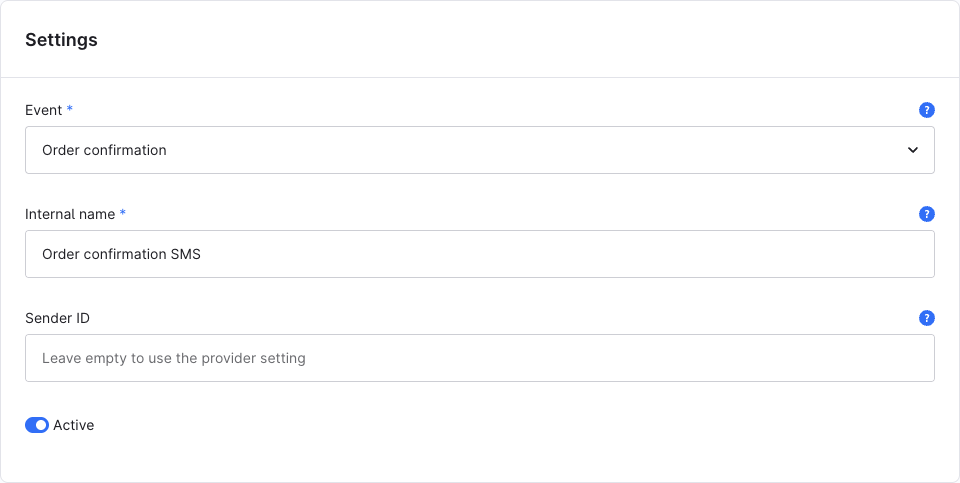
| 1 | Event (required) | The moment this SMS belongs to. Click the field and pick from the list; you can type to search. For the order confirmation choose Order confirmation. |
| 2 | Internal name (required) | A name only you see, e.g. Order confirmation SMS. It appears when you pick the template in Flow Builder. It is never sent to customers. |
| 3 | Sender ID | Leave empty. (In this version the value is not used — messages always come from the sender set in the plugin configuration. See Known issues.) |
| 4 | Active | Switch it on. An inactive template is skipped and nothing is sent. |
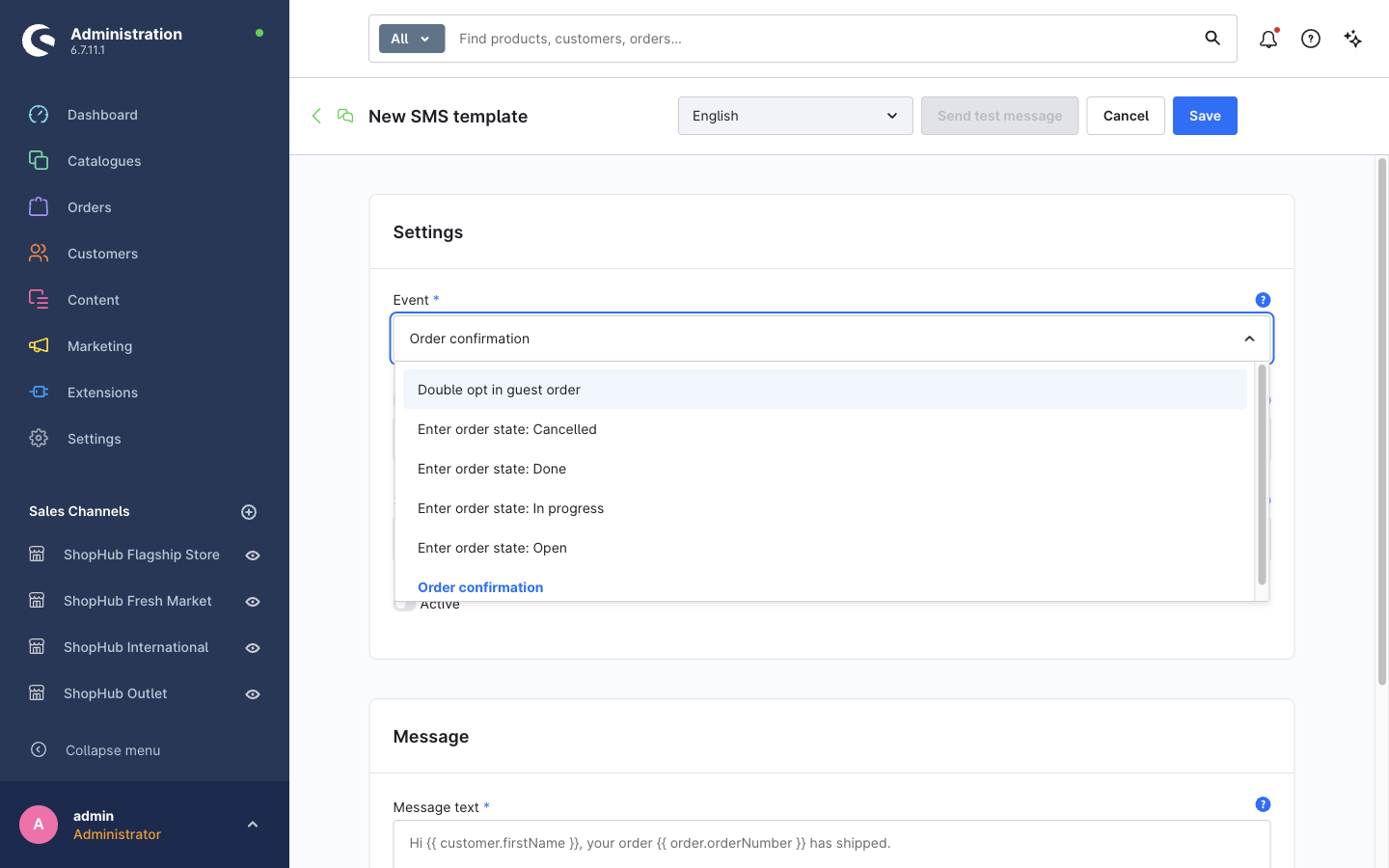
The finished Settings box looks like this:
Which event should I choose?
The events are Shopware's email types. The most useful ones for SMS:
| You want to text the customer when… | Choose the event |
|---|---|
| they place an order | Order confirmation |
| the order ships | Enter delivery state: Shipped |
| the order is cancelled | Enter order state: Cancelled |
| the payment is received | Enter payment state: Paid |
| they register an account | Customer registration |
| they ask for a new password | Customer password recovery |
The event only labels the template. When the SMS is actually sent is decided by the flow you add it to — see Send SMS from a flow. Use the event that matches the flow.
3. Write the message
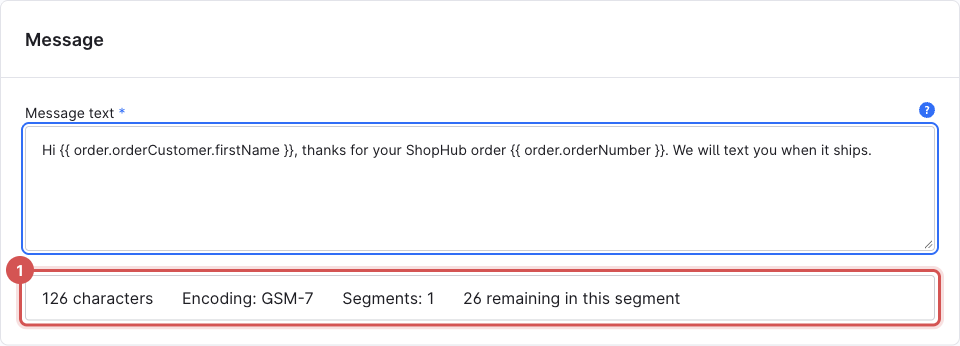
Type the text into Message text. Parts in double curly braces — {{ … }} — are placeholders: the plugin replaces them with the real value for each customer.
twig
Hi {{ order.orderCustomer.firstName }}, thanks for your ShopHub order {{ order.orderNumber }}. We will text you when it ships.A customer called Ada with order 10057 receives:
Hi Ada, thanks for your ShopHub order 10057. We will text you when it ships.
Placeholders you can use
Copy them exactly, including the spaces inside the braces.
| Placeholder | Becomes | Works for |
|---|---|---|
{{ order.orderNumber }} | the order number, e.g. 10057 | order events |
{{ order.orderCustomer.firstName }} | the customer's first name | order events |
{{ order.orderCustomer.lastName }} | the customer's last name | order events |
{{ order.amountTotal|number_format(2) }} | the order total, e.g. 24,500.00 | order events |
{{ order.currency.isoCode }} | the currency, e.g. NGN | order events |
{{ customer.firstName }} | the customer's first name | customer events (registration, password recovery) |
The same data is available as in Shopware's email templates for that event. For everything that exists, see Shopware's email templates documentation.
A typo stops that SMS, nothing else
If a placeholder is misspelled, the SMS for that customer is skipped and the problem is written to the log. The email and the rest of the flow still run. Use Send test message (step 5) after every change.
The counter: how many SMS you pay for
Under the message box the plugin shows a counter:
| Item | Meaning |
|---|---|
| characters | Length of the text as typed |
| Encoding | GSM-7 for plain text, UCS-2 (Unicode) when special characters are used |
| Segments | How many billed SMS parts the message needs |
| remaining in this segment | How many characters you can still add before the next part starts |
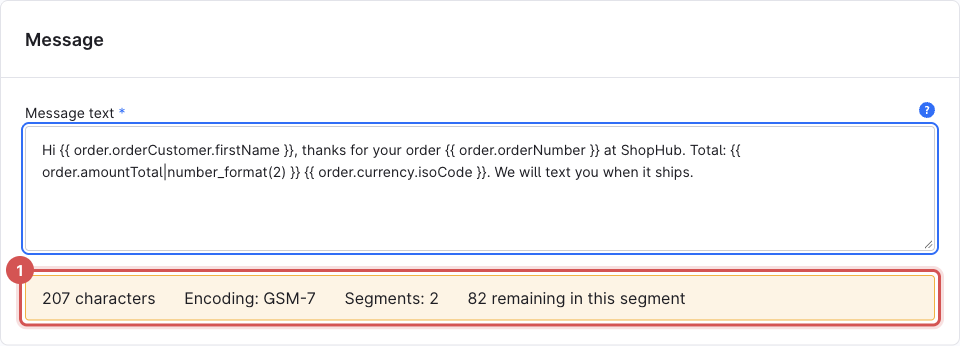
Providers bill per segment. One plain-text SMS holds up to 160 characters; a longer message is split into parts of 153 characters each, and you pay for every part. When the message needs more than one segment the counter turns orange:
Two things the counter cannot know
- It counts the template, not the finished SMS. A placeholder like
{{ order.orderCustomer.firstName }}is 36 characters in the template but only as long as the name in the real SMS. Real messages are usually shorter than the counter says — but a long product name or shop name can make them longer. - Some characters count double.
{,},[,],~,|,^,€and\take two character spaces in an SMS, so every placeholder's braces add to the count.
Aim for a counter well below 160 to stay in one segment.
Avoid "Unicode" characters
A single curly apostrophe (’ instead of '), an emoji, or an accented letter outside the basic SMS alphabet switches the whole message to Unicode. A Unicode SMS holds only 70 characters per segment, so the same message can cost two or three times as much. The plugin warns you:
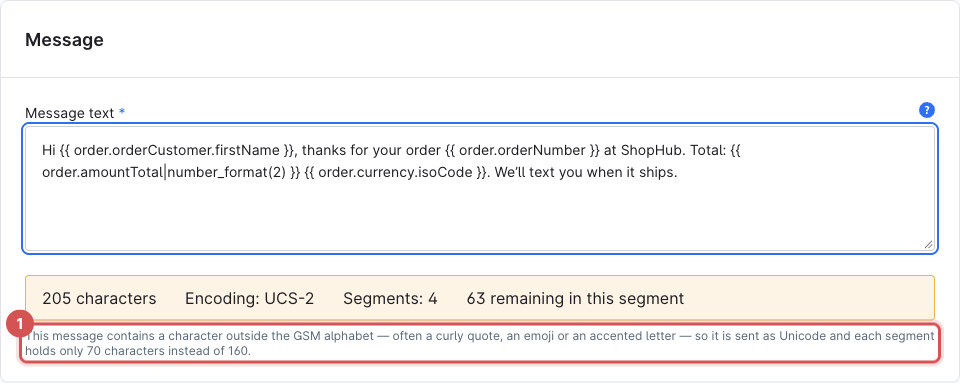
Here, only the apostrophe in We’ll changed — and the message went from 2 to 4 segments. Replace curly quotes with straight ones (', "), and avoid emoji.
4. Save
Click Save (1) at the top right.
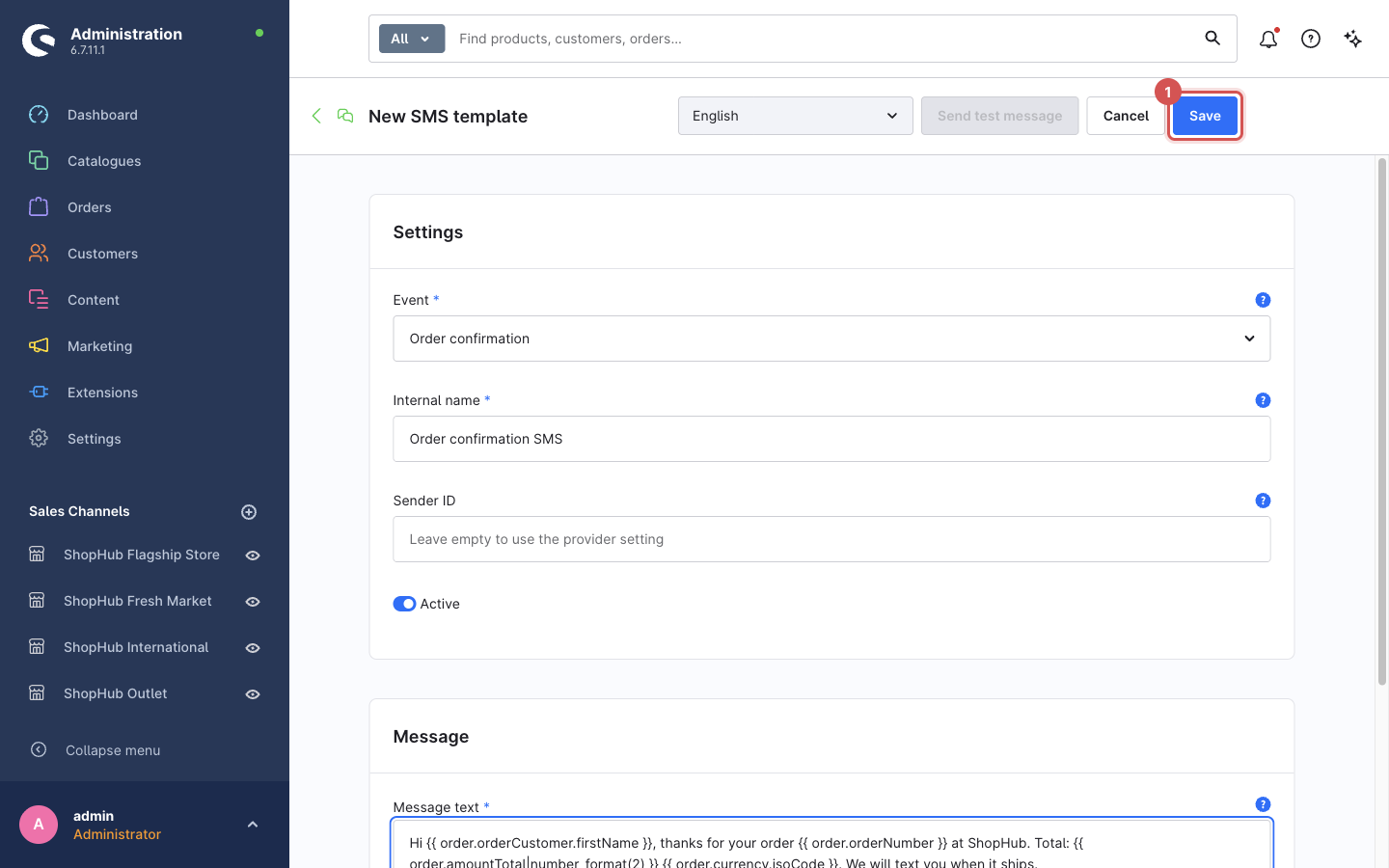
The button briefly shows a tick. The Send test message button now becomes clickable.
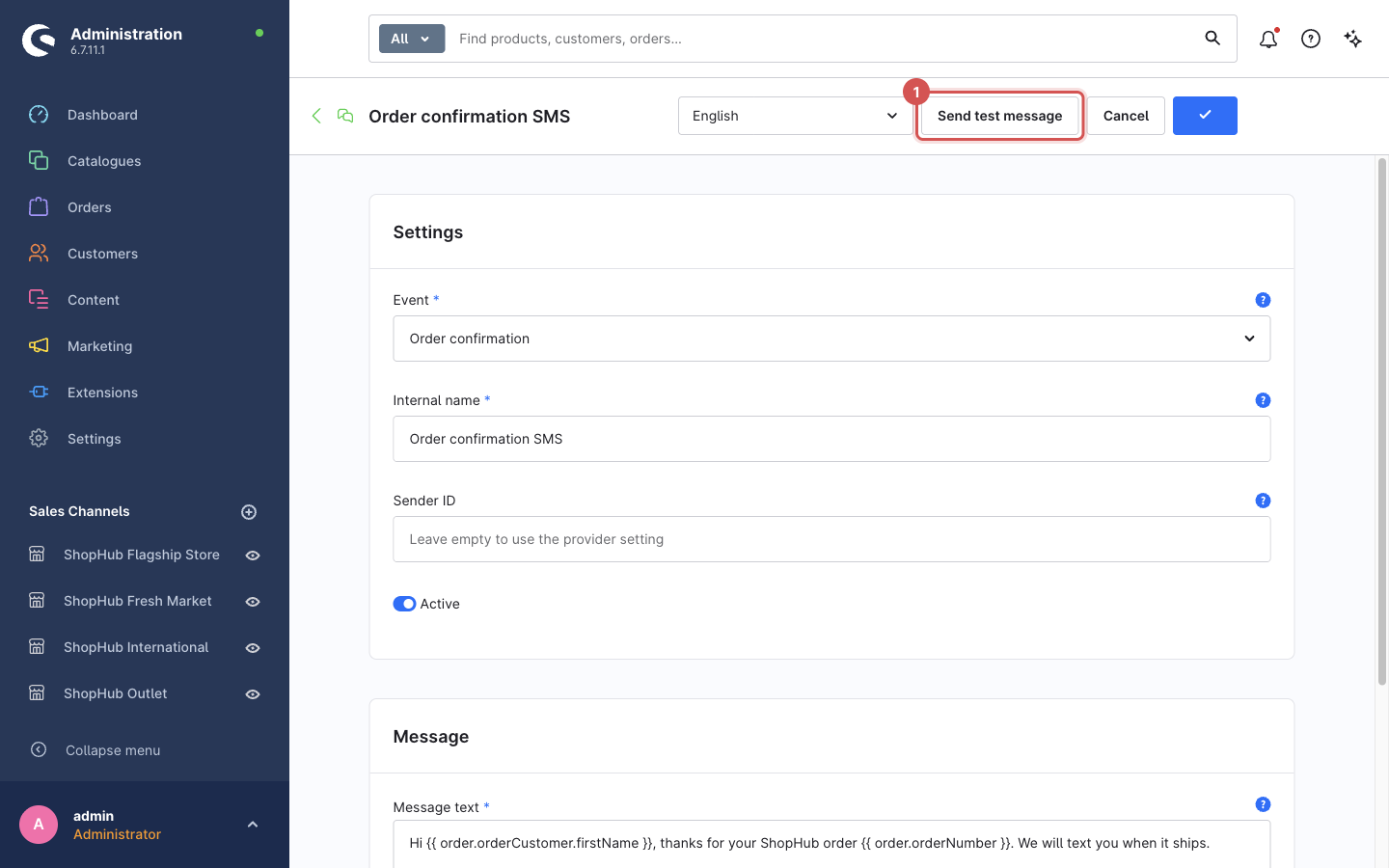
5. Send a test message
Click Send test message (1) at the top.
Enter your own mobile number in international format, e.g.
+2348030000000(1), and click Send test (2).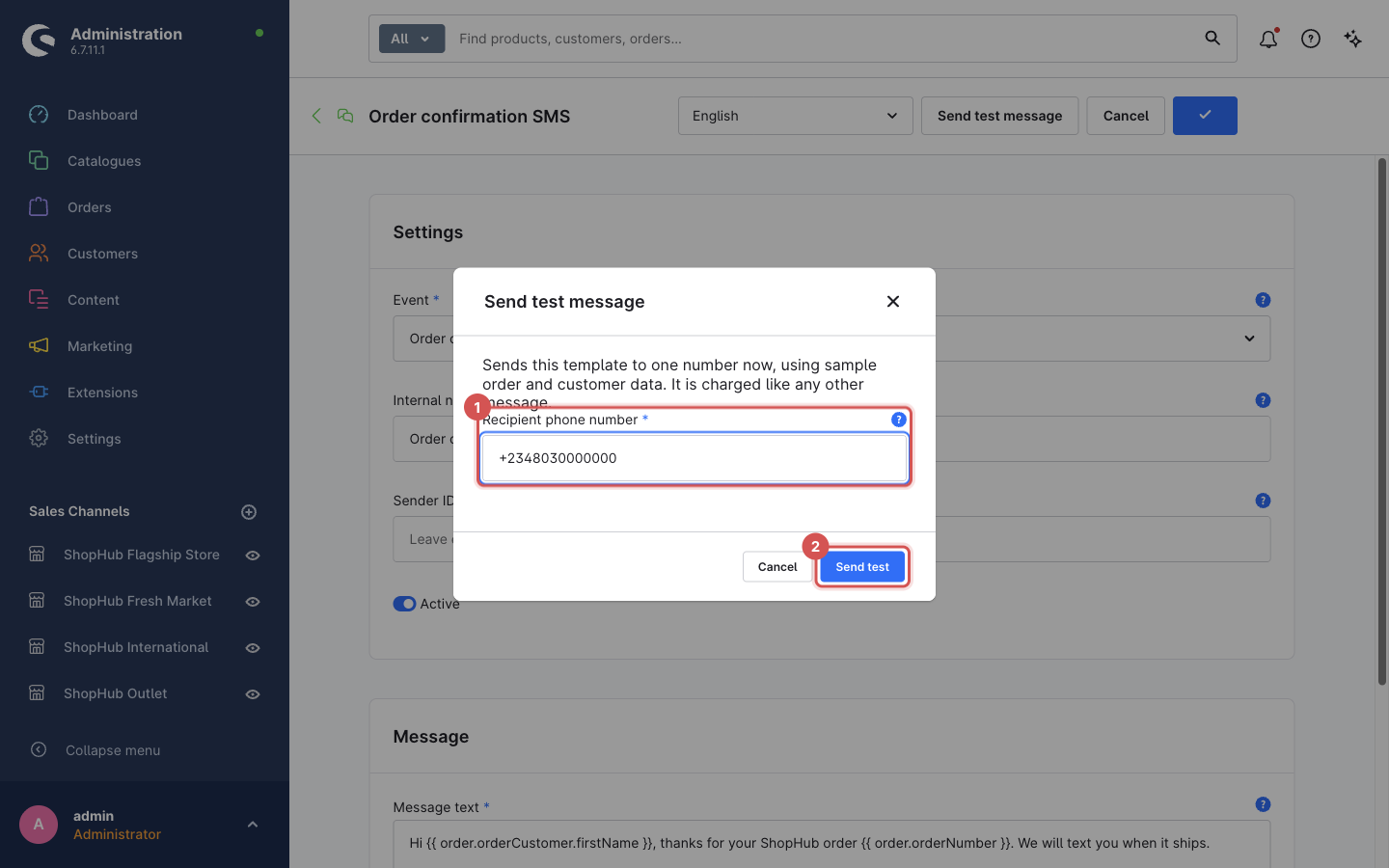
Within a few seconds you receive the SMS. The placeholders are filled with sample data (order
10001, customer Jane Doe, total49.99 NGN), not a real order.
Good to know:
- The test is sent immediately, straight to the provider — it does not wait for the background queue, and it works even if no flow uses the template yet.
- It is charged like any other SMS.
- It always sends the saved version. Save first after changing the text.
- If it fails, the dialog says why — for example No provider is configured yet, The provider refused the message or That phone number is not usable. The fixes are in Troubleshooting.
- Placeholders that the sample data does not contain come out empty in the test but are filled in real messages. Sample data contains the order number, total, currency and tracking code, the customer's name, email and customer number, and the shop name.
6. Translate the template (optional)
If your shop runs in more than one language, write the message in each language. Customers receive the text in the language of their order.
- Save the template first — translating is only possible for a saved template.
- Choose the language in the drop-down at the top of the page (next to Send test message).
- Type the text for that language and click Save.
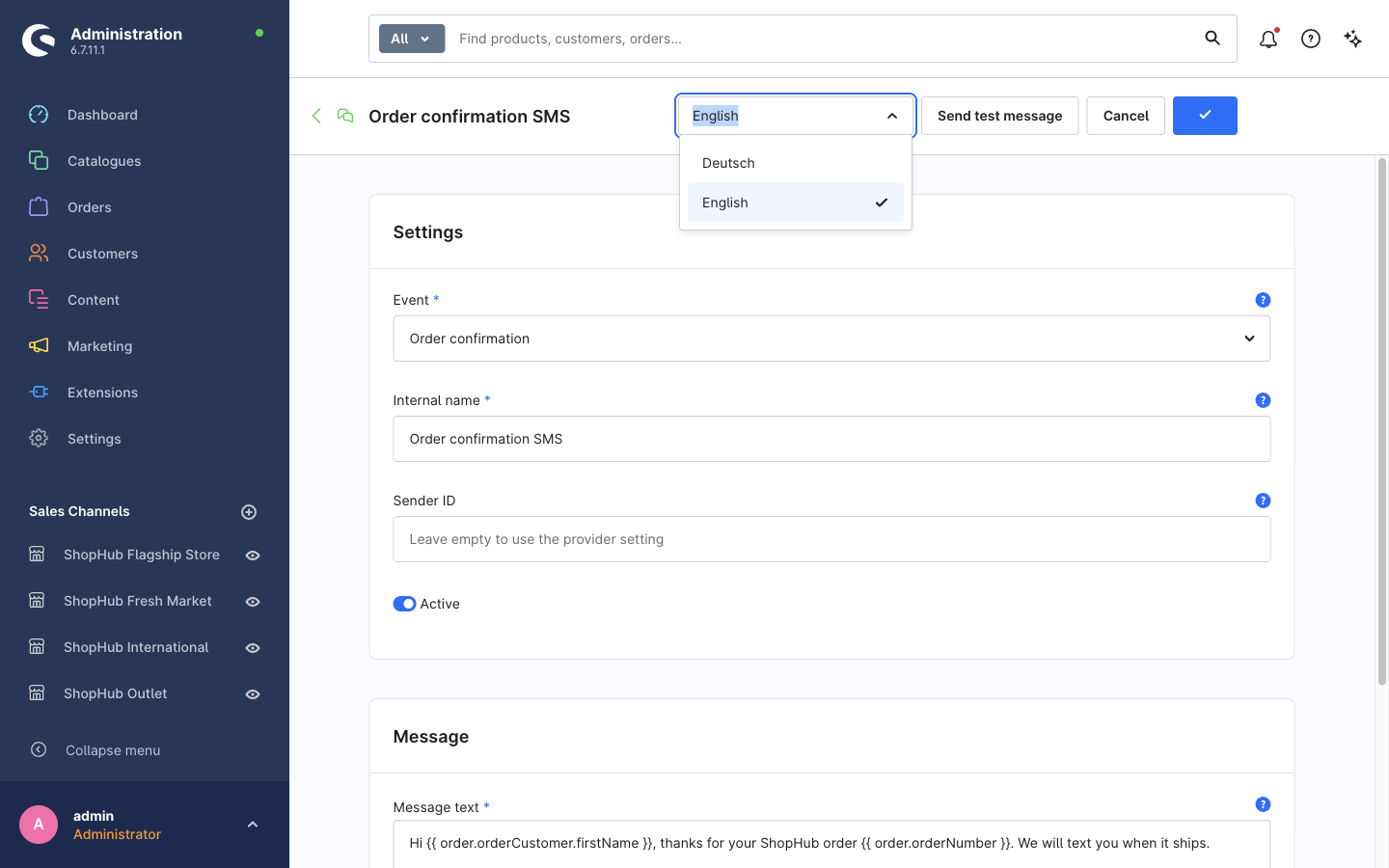
If a template has no text in the order's language, that SMS is skipped and logged (the email is still sent).
Your templates list
Back on SMS templates you see all templates. The list shows the Event of each template (click it to open), the Sender ID column (From provider settings when empty), and Last modified.
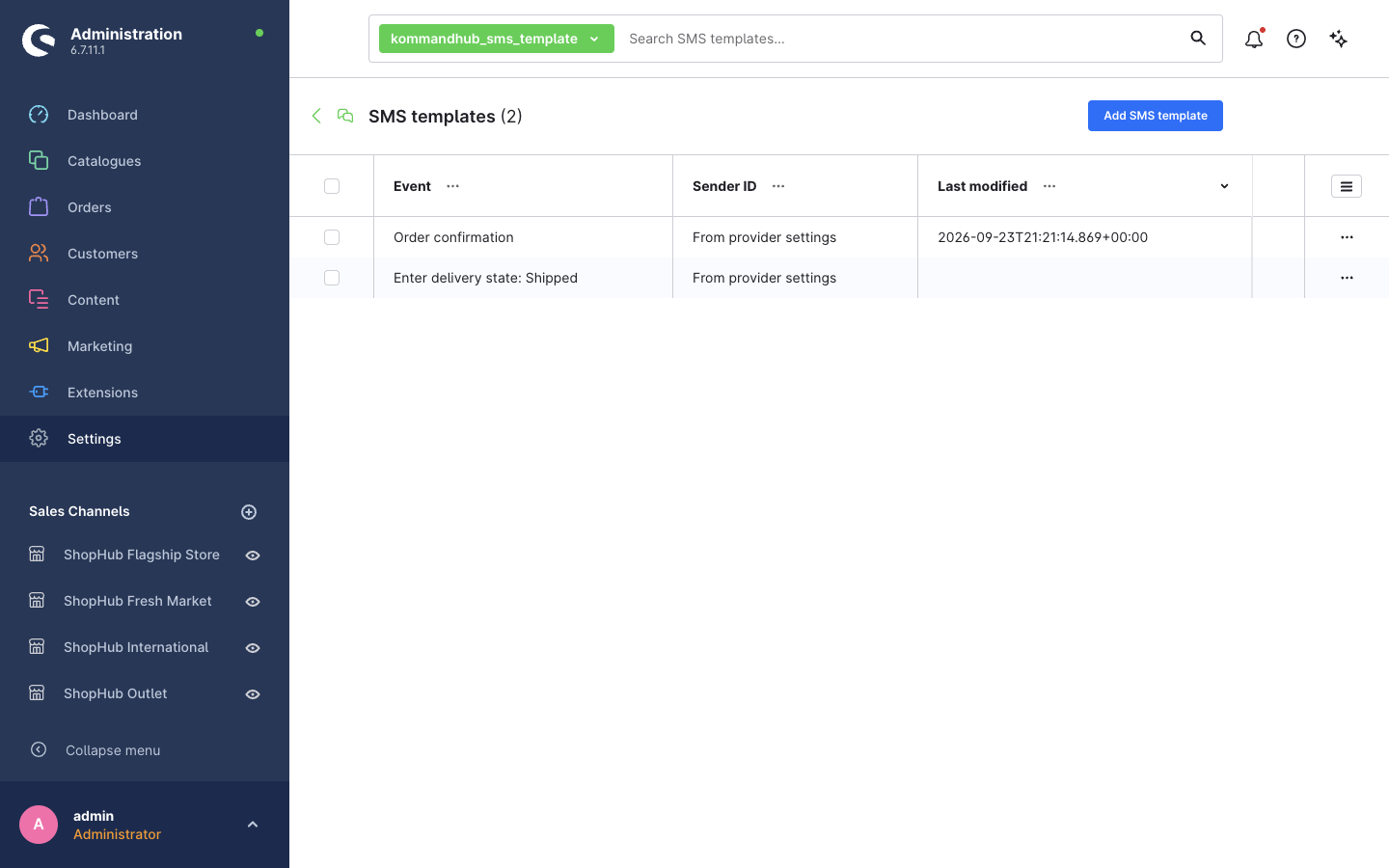
- To edit a template, click its event name.
- To delete a template, click ⋯ at the end of its row and choose Delete. Flows that use it then skip their SMS (and log a warning) — remove the Send SMS action from those flows too.
- Last modified stays empty until you edit a template for the first time.
Next step
A template does nothing on its own. Add it to a flow: Send SMS from a flow →