

Appearance
Installation
For merchants
From zero to an African-ready shop. Plan about 15 minutes.
Before you start
You need:
- Shopware 6.6 (6.6.1 or newer) or 6.7, with PHP 8.2 or newer and the PHP
intlextension. The Shopware version is shown at the top of the Administration's left menu. - An Administrator login to the Shopware Administration (
https://<your-shop>/admin). - Someone with access to your server or hosting to run Composer. If your agency or host manages the shop, send them this page.
- Optional: the African currencies you sell in, created under Settings → Currencies with your real exchange rate. The plugin corrects their decimal places but never creates them.
1. Install the plugin
Choose one of the two ways.
Option A — Composer (for developers and hosts)
In the Shopware project directory on the server:
bash
composer require kommandhub/africa-commerce-core-sw
bin/console plugin:refresh
bin/console plugin:install --activate KmhAfricaCommerceCoreSW
bin/console cache:clear
The package also installs giggsey/libphonenumber-for-php, used by the phone check. Background: Shopware's guide on extension management.
Option B — Upload a ZIP file (in the Administration)
- Get the ZIP file of African Commerce Core, version 0.1.0.
- In the Administration click Extensions → My extensions.
- Click Upload extension (top right) and choose the ZIP file.
- The plugin appears in the list. Click Install, then switch the toggle in its row on to activate it.
More about this screen: Shopware's My extensions documentation.
Check it is installed
Under Extensions → My extensions you see African Commerce Core with version 0.1.0 and the toggle switched on.

Installing adds:
- a Merchant override (do not auto-import) custom field on countries, currencies, states and local divisions;
- three new database tables for local divisions and the extra address fields;
- the plugin configuration page with the Run reference-data import button.
Nothing else changes yet: the reference data is not imported on installation.
2. Run the reference-data import
- Extensions → My extensions, click ⋯ next to African Commerce Core, choose Configure.
- Leave the Sales Channel drop-down on All Sales Channels.
- In the Reference data card click Run reference-data import.
- A table shows what happened per dataset. On a shop without African currencies, the currencies row shows them as Missing — that is expected.
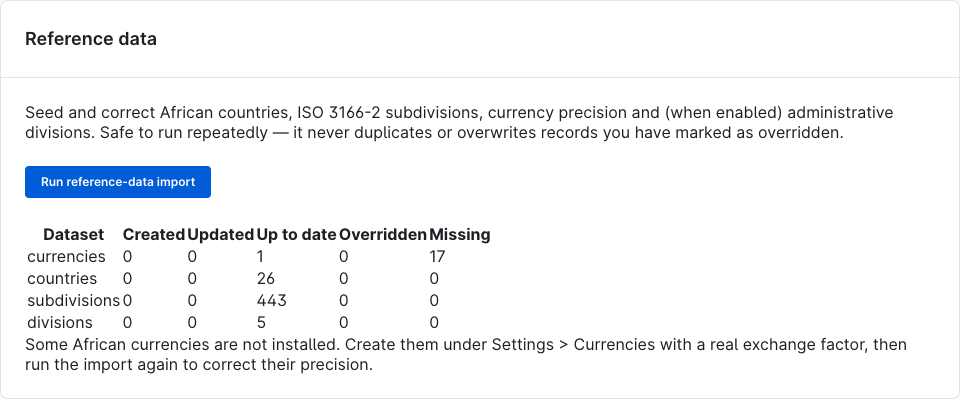
What each number means and exactly what is imported: Reference data.
Developers can run the same import from the command line:
bash
bin/console africa:reference:import3. Make the countries available in your storefront
The import activates countries, but Shopware only offers a country in a storefront when it is assigned to that sales channel. For each storefront: Sales Channels → your storefront → General → Countries, add the countries you deliver to, and click Save. See Shopware's sales channel documentation.
4. Optional — extra address fields and phone check
In the plugin configuration, card Features, switch on what you need and click Save:
- Additive address fields — landmark, area, directions, digital address code.
- Administrative-division hierarchy — the local-division drop-down (needs Additive address fields too). After switching it on, run the import again so the divisions are added.
- Phone normalization — the live phone check. Also switch on the phone field under Settings → Log-in & sign-up.
Details: Configuration · Address fields & phone check.
5. Final check
In the storefront, open the registration page, choose Nigeria and the state Lagos:
- with Additive address fields on, the four extra fields appear below the address;
- with the division hierarchy on and imported, Local division lists Eti-Osa, Ikeja (with Alausa and Ojodu), Surulere;
- with the phone check on, typing
08030000000in the phone field and leaving it shows+234 803 000 0000.
Updating
bash
composer update kommandhub/africa-commerce-core-sw
bin/console plugin:refresh
bin/console plugin:update KmhAfricaCommerceCoreSW
bin/console cache:clear
ZIP installs: upload the new ZIP under Extensions → My extensions → Upload extension, then click Update. The update re-creates the Merchant override field and its assignments if they are missing; your settings, imported data and saved address details are kept. A new version may ship new reference data — run the import again afterwards.
Uninstalling
- Extensions → My extensions, click ⋯ next to African Commerce Core, choose Uninstall — or run
bin/console plugin:uninstall KmhAfricaCommerceCoreSW. - Shopware asks whether to keep the plugin's data.
| Keep data | Do not keep data | |
|---|---|---|
| Countries activated, states added, currency decimal places corrected by the import | Kept | Kept — removing them could break existing orders and addresses |
| Local divisions | Kept | Deleted |
| Extra address details (landmark, area, directions, digital address code, division) | Kept | Deleted |
| Merchant override custom field | Kept | Deleted |
Deactivating the plugin (toggle off) removes the extra fields, the phone check, the import button and the command; nothing is deleted.