

Appearance
Installation
For merchants
Install the theme, assign it to your storefront and compile it. Plan about 15 minutes.
Before you start
You need:
- Shopware 6.7 with PHP 8.2 or newer.
- An Administrator login to the Shopware Administration (
https://<your-shop>/admin). - For the Composer route: someone with access to the server's command line. If your agency or host manages the shop, send them this page.
Try it on a staging shop first
A theme changes how every storefront page looks. Assign it on a staging copy or a second sales channel first, check your key pages, then switch your live storefront.
1. Install the plugin
Choose one of the two ways.
Option A — Composer (recommended)
The theme is on Packagist. In the Shopware project directory on the server:
bash
composer require kommandhub/base-theme-sw
bin/console plugin:refresh
bin/console plugin:install --activate KmhBaseTheme
bin/console cache:clear
Background: Shopware's guide on extension management.
Option B — Upload a ZIP file
- Download the release ZIP from GitHub Releases.
- In the Administration click Extensions → My extensions.
- Click Upload extension and choose the ZIP file.
- Click Install next to Base Theme, then switch its toggle on.
Check it is installed
Under Extensions → My extensions you see Base Theme, version 1.0.0, switched on. Under Content → Themes a new theme KmhBaseTheme appears.

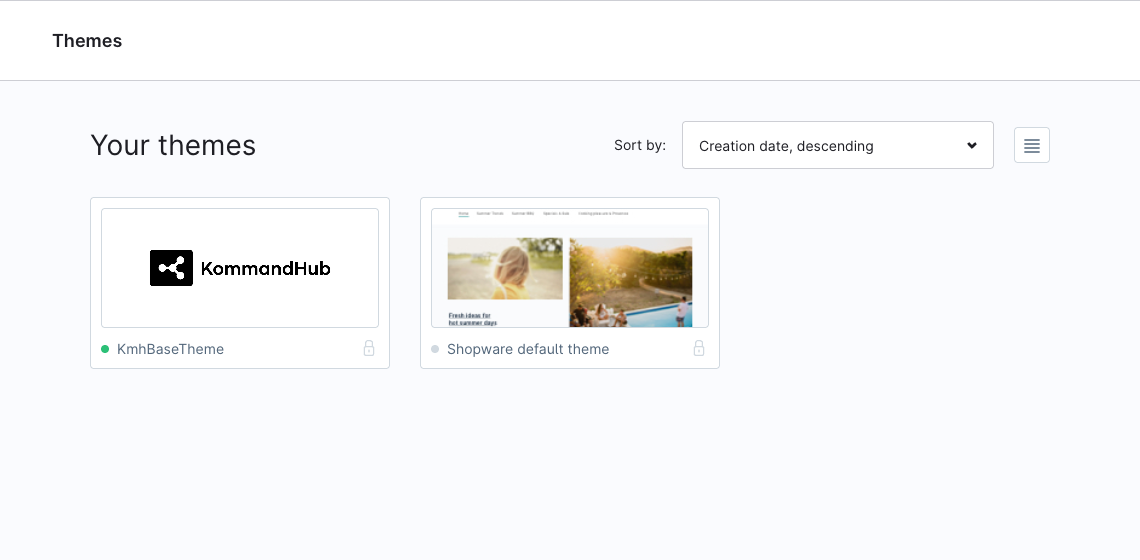
Installing changes nothing in your storefront yet — the theme only takes effect once you assign it.
2. Assign the theme to a sales channel
Each storefront sales channel uses exactly one theme.
- In the Administration's left menu, under Sales Channels, click your storefront.
- Open the Theme tab.
- Click Change theme, choose KmhBaseTheme and confirm.
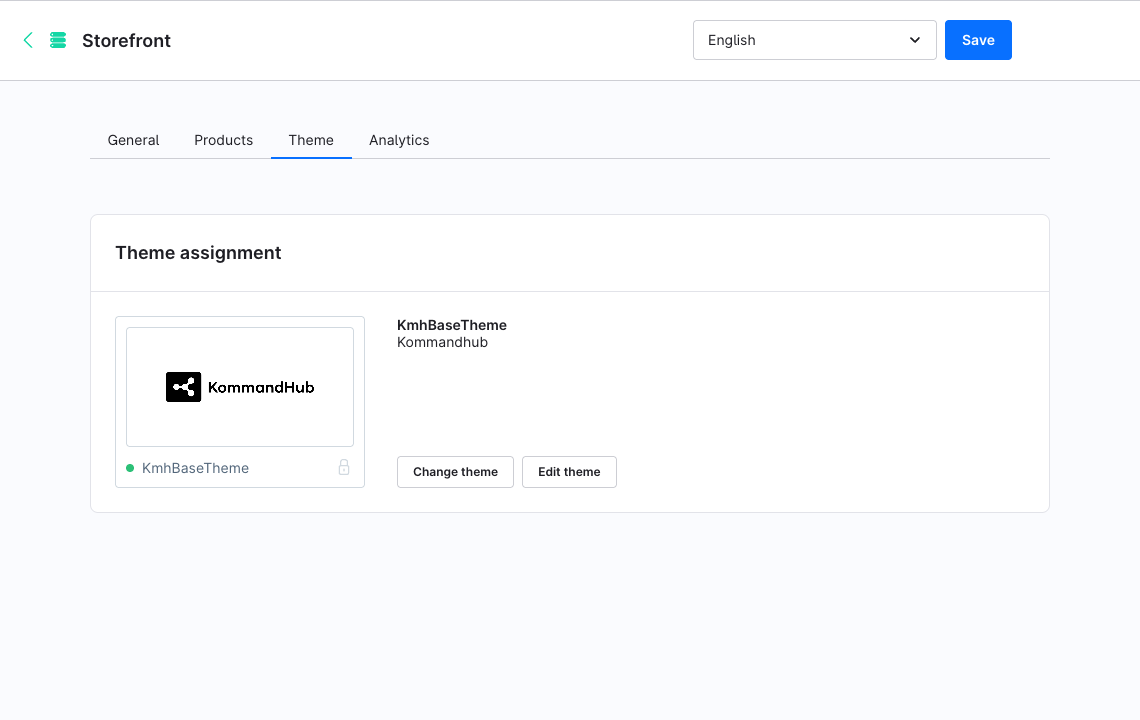
Shopware compiles the theme for that sales channel when you assign it. This can take a minute.
From the command line (all storefront sales channels at once):
bash
bin/console theme:change --all KmhBaseTheme
bin/console cache:clear
Leave out --all to be asked which sales channel to change.
3. Configure and compile
Upload your logo and choose the layout options under Content → Themes → KmhBaseTheme — every setting is explained in Theme configuration. Click Save; Shopware recompiles the theme for every sales channel it is assigned to.
After changing settings outside the Administration, or after an update, recompile:
bash
bin/console theme:compile
bin/console cache:clear
4. Final check
Open your storefront in a private browser window:
- The header shows your logo and, next to the account and cart icons, a moon button.
- Click the moon button: the page turns dark. Reload — it stays dark. Click again to return to light.
- Open a category, a product, the cart and the checkout and check they look right.
If the storefront still looks like the default Shopware theme, see Troubleshooting → The storefront does not change.
Updating
bash
composer update kommandhub/base-theme-sw
bin/console plugin:update KmhBaseTheme
bin/console theme:compile
bin/console cache:clear
ZIP installs: upload the new ZIP under Extensions → My extensions → Upload extension, click Update, then recompile the theme (or save it once under Content → Themes). Your theme settings and logo are kept. What changed: Changelog.
Uninstalling
- Assign another theme (for example the default Shopware default theme) to every sales channel that uses KmhBaseTheme — Sales Channels → (storefront) → Theme → Change theme. Shopware does not let you deactivate a theme that is still assigned.
- Extensions → My extensions, click ⋯ next to Base Theme, choose Uninstall — or run
bin/console plugin:uninstall KmhBaseTheme. - Run
bin/console cache:clear.
The theme stores nothing outside Shopware's own theme tables. Visitors' dark-mode choice lives in their own browser and is simply no longer used.