

Appearance
Customer checkout
For merchants
What your customer sees when they choose to collect an order. The screenshots follow a guest order from a customer in Lagos, collected from the Lekki Flagship Store set up on Pickup locations.
Before this works, at least one active location must be assigned to the storefront and open on at least one day of the next two weeks. Self pick-up and Pay on pickup are added to every storefront when the plugin is installed — see Installation.
1. Choose Self pick-up
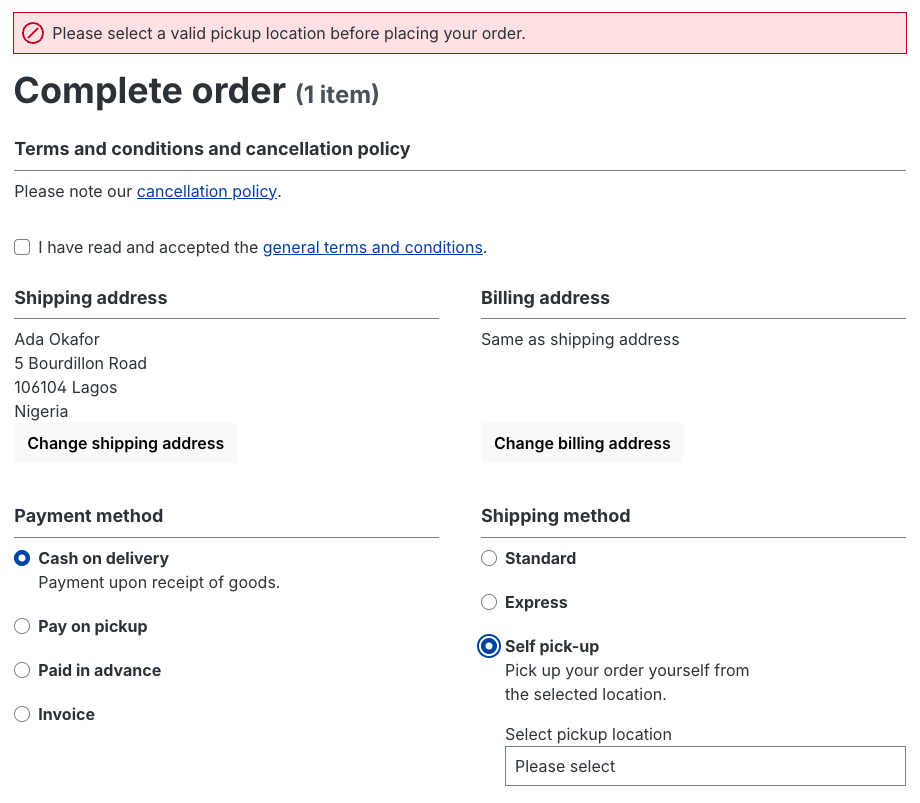
The customer adds products to the cart and goes to checkout as usual. On Complete order, under Shipping method, they choose Self pick-up.
If the setting Enable pickup location selection is off, the dropdown is locked to the store's default location — see Configuration. Otherwise, until a location is chosen, Shopware shows "Please select a valid pickup location before placing your order." and the order cannot be submitted.
With Self pick-up selected, Pay on pickup appears among the payment methods. It is hidden for every other shipping method.
2. Pick the location, date and time
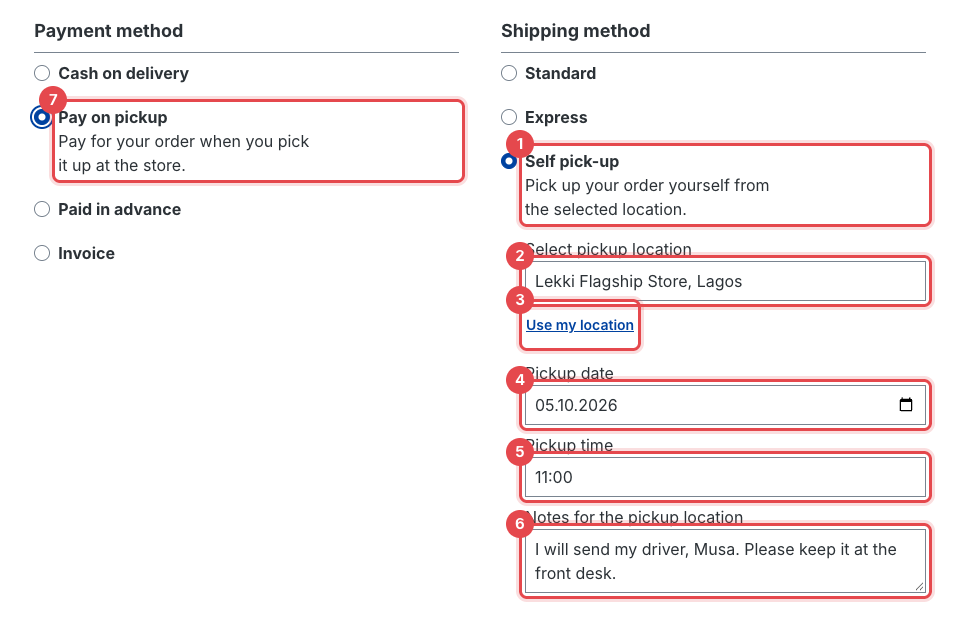
- Self pick-up is the shipping method.
- Select pickup location lists the locations open on at least one day of the next 14 days, alphabetically. Choosing one saves it and reloads the page.
- Use my location — optional; lists the nearest locations first. Only shown if the customer allowed it in the cookie settings (below).
- Pickup date — starts on today; earlier dates can't be picked. Changing it loads that day's times.
- Pickup time — 30-minute slots inside the location's opening hours, in the location's time zone. A store open 09:00–17:00 offers 09:00 to 16:30. Slots already in the past are left out.
- Notes for the pickup location — optional, up to 500 characters, e.g. who will collect. The store sees it on the order and in its email.
- Pay on pickup — optional. The customer pays at the counter; nothing is charged online. Any other payment method on the storefront works too.
The choices survive a change of payment method. The customer accepts the terms and clicks Submit order.
On submit, the time is checked once more against the opening hours; a time outside them blocks the order with "The selected pickup time is outside the location's opening hours."
Both a location and a time are required: until a time is chosen, Shopware shows "Please choose a pickup time before placing your order." and Submit order stays disabled.
A date with no times
If the chosen date has no slots — the store is closed that day, or all of today's slots have passed — the time list only shows Select a time. The customer needs to pick another date.
Use my location
If Enable sorting pickup locations by distance is on (Configuration), the storefront's cookie settings gain an optional group, Pickup location by distance. Only customers who switch it on see Use my location in checkout:
When the customer clicks Use my location, the browser asks for permission to share their position. The location list is then reloaded with the nearest locations first; locations without coordinates come last. If the position can't be determined, the customer sees "Your location could not be determined. The pickup locations are shown in their usual order."
The position is rounded to about 1 km (two decimals), used only to sort that one list, and never stored. Mention the cookie group in your privacy notice if you enable the feature.
3. Order confirmation
The confirmation page shows a Pickup point card with the location, address, pickup time, the customer's notes and — if enabled — the store's phone and email.
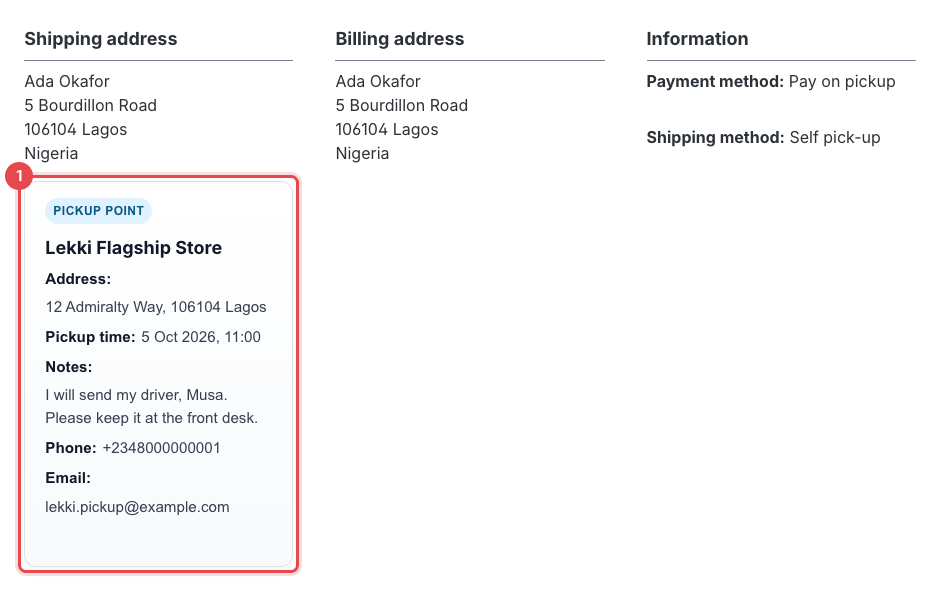
The pickup time is shown in the location's time zone, so a customer abroad sees the store's local time.
At the same moment:
- the customer receives Shopware's usual order confirmation email;
- the pickup location's email receives New pickup order received — see Orders, emails & flows.