

Appearance
Customer checkout
For merchants
What your customer sees when they choose courier delivery. The screenshots follow a guest order from Ada Obi in Lagos, paying in naira.
Before this works, Courier delivery (Shipbubble) must be active and assigned to the storefront (Installation), a key and a validated sender must be saved (Configuration), and the storefront must be in NGN.
1. Choose courier delivery
The customer adds products to the cart and goes to checkout with a shipping address including a phone number. On Complete order, under Shipping method, they choose Courier delivery (Shipbubble).
The plugin asks Shipbubble for prices from your sender address to the customer's address, for a parcel built from the cart's weights (how the parcel is built).
2. Pick a courier
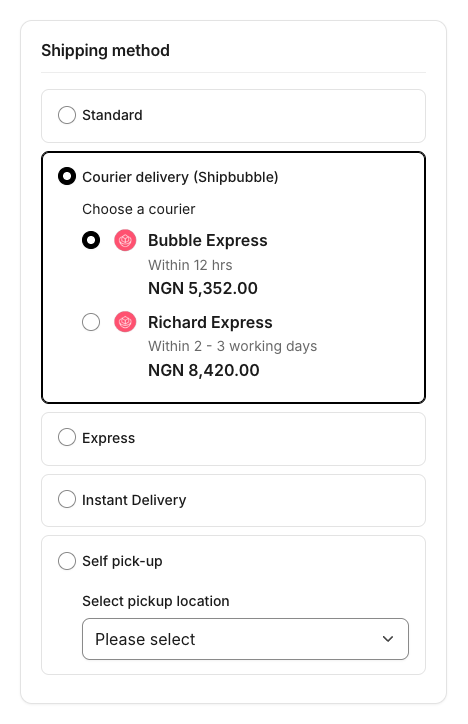
Under Choose a courier every courier that delivers to the address is listed, cheapest first, with:
- the courier's logo and name;
- Shipbubble's delivery estimate, for example Within 12 hrs or Within 2 - 3 working days;
- the price — the courier's Shipbubble price plus your markup.
Only the couriers selected in Couriers offered at checkout are listed (all of them when the setting is empty). The cheapest courier is preselected. When the customer picks another, the page reloads and the cart's shipping costs change to that courier's price.
The price always comes from the plugin's own Shipbubble quote on your server. The browser only sends which courier was chosen, so a price can't be tampered with.
Quotes are cached per cart and address for the Quote cache time (30 minutes by default): moving between checkout pages doesn't ask Shipbubble again. Changing a quantity, a product or the address gets a fresh quote.
The customer accepts the terms and clicks Submit order. Payment works as usual with any payment method on the storefront.
When a delivery can't be priced
Checkout never breaks. If Shipbubble can't price the delivery, Courier delivery (Shipbubble) shows a message at the top of the page, the order can't be placed with it, and the customer picks another shipping method:

| Situation | The customer sees | What you can do |
|---|---|---|
| No phone number, or street, city or country missing | "Please complete your delivery address, including a phone number, to use courier delivery." | Turn on the phone field under Settings → Shop → Login & sign-up. |
| Shipbubble can't find the address | "We could not find your delivery address for courier delivery. Please check it or choose another delivery method." | The customer corrects the address. |
| No courier delivers there | "No courier delivers to your address. Please choose another delivery method." | Offer more couriers, or another shipping method. |
| The storefront currency isn't NGN | "Courier delivery is not available in this currency. Please choose another delivery method." | Let customers check out in NGN, or remove the method from that sales channel. |
| Shipbubble can't be reached | Your fallback price if one is set; otherwise "Courier delivery is temporarily unavailable. Please choose another delivery method." | With a fallback price, book the courier from the order later. |
| Key missing or sender not validated | "Courier delivery is currently unavailable. Please choose another delivery method." | You get an admin notification (at most once an hour per sales channel). Fix the configuration. |
A validated address is stored for good, so Shipbubble's validation fee is paid once per address. An address Shipbubble rejected is not sent again for an hour.
Keep another shipping method
Don't make Shipbubble the only or the default shipping method of a sales channel. A customer whose address can't be quoted needs another option.
3. After the order
At the moment the order is placed, the plugin stores the chosen courier, the courier's price, the price the customer paid and Shipbubble's quote with the order. Nothing is booked yet.
- The customer receives Shopware's usual order confirmation email.
- When the order is paid, the courier is booked and the customer receives a tracking email — see Shipments, tracking & flows.
- Once booked, the Shipbubble order id is the order's tracking code. In Account → Orders and in Shopware's shipping emails it links to Shipbubble's tracking page,
https://trackshipment.shipbubble.com/shipment/<Shipbubble order id>.