

Appearance
Shipments, tracking & flows
For merchants
How a courier-delivery order gets booked, tracked and closed. The screenshots show the orders of the guest customer Ada Obi from Customer checkout.
A typical order
- The customer pays. The flow Shipbubble: create shipment when paid books the chosen courier at Shipbubble; the cost is charged to your Shipbubble wallet.
- The customer receives Your order 10034 is booked with Bubble Express with the tracking link.
- Print the waybill from the order's Shipbubble card and have the parcel ready for pickup at your sender address.
- Shipbubble sends status updates: when the courier picks the parcel up, the order's delivery status changes to Shipped.
- When Shipbubble reports the parcel delivered, the customer receives Your order 10034 has been delivered.
You don't have to click anything in the Administration for this — unless a booking fails or a price has to be renewed.
The Shipbubble card
Open Orders and the order. On the General tab, a Shipbubble card is shown for every delivery shipped with Courier delivery (Shipbubble).
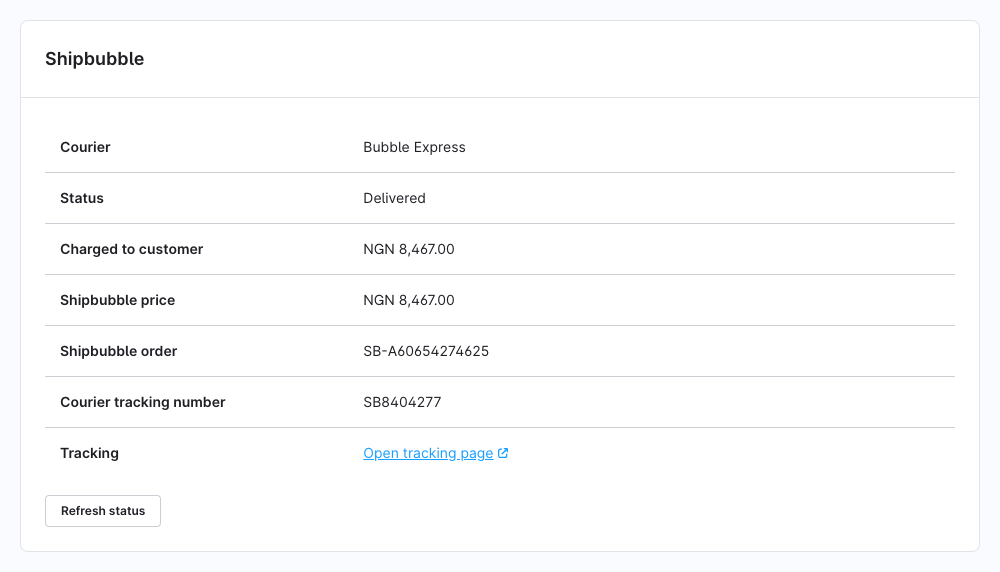
| Field | Meaning |
|---|---|
| Courier | The courier the customer chose (or the one you confirmed in a re-quote). |
| Status | The Shipbubble status — see Statuses. |
| Charged to customer | The shipping price the customer paid, including your markup. |
| Shipbubble price | What Shipbubble charges your wallet for this courier. |
| Shipbubble order | Shipbubble's order id, once booked. It is also the order delivery's tracking code. |
| Courier tracking number | The courier's own tracking number, when Shipbubble reports it. |
| Tracking | Open tracking page — Shipbubble's public tracking page for this parcel. |
| Waybill | Download waybill — the label to print and attach to the parcel, when Shipbubble provides it. |
The buttons depend on the status and on your permissions; with view-only rights the card has no buttons.
Statuses
| Status | Meaning | Buttons |
|---|---|---|
| Not booked yet | The order has a courier quote from checkout; nothing booked. | Create shipment |
| Needs a new price | The checkout quote can't be used; booking needs your confirmation of a new price. | Create shipment |
| Booked · Confirmed | Booked at Shipbubble, waiting for the courier. | Refresh status · Cancel shipment |
| Picked up · In transit | The courier has the parcel. | Refresh status · Cancel shipment |
| Delivered | Shipbubble reports the parcel delivered. | Refresh status |
| Returned | The parcel is on its way back to you. | Refresh status |
| Cancelled | The shipment was cancelled. | Refresh status |
Create a shipment by hand
Normally the create shipment when paid flow books the courier. Book by hand when the order's payment status never becomes paid in Shopware, when the flow is switched off, or after a failed booking.
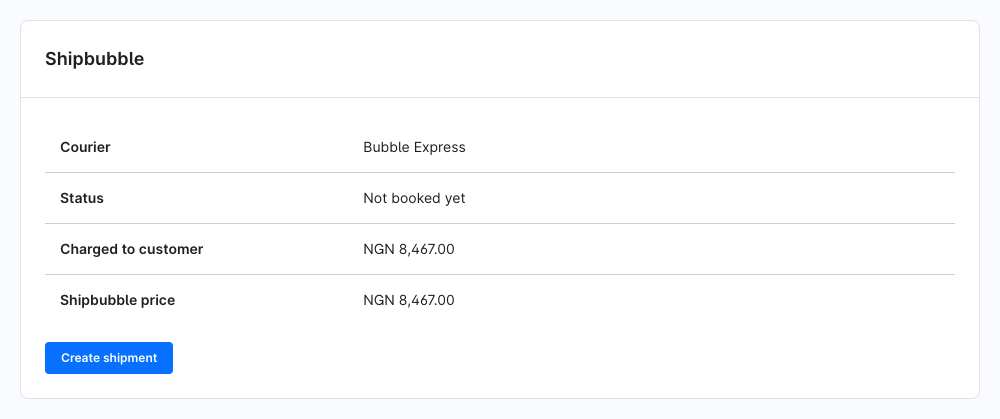
Click Create shipment. The courier is booked with the quote from checkout, and the card shows "Shipment created at Shipbubble.", the Shipbubble order and the tracking link. The customer receives the tracking email.
A delivery is never booked twice: the shipment is locked while it is being booked, so a double click, or a click while the flow is booking, does nothing extra.
When the price has to be renewed
A checkout quote can be booked only once and expires. The plugin asks Shipbubble for a new price — never from the cache — when:
- the checkout quote is older than six days (144 hours);
- Shipbubble rejects the quote;
- the order was placed at your fallback price, so it never had a quote.
Shopware then shows Confirm new courier price: "The courier quote has to be renewed. Bubble Express now costs NGN 8,600.00 (was NGN 8,467.00). The shipping price the customer paid does not change. Book the shipment at the new price?"
- Click Book shipment within 15 minutes to book at the price shown. After that the price is asked for again.
- Click Cancel to leave the delivery as Needs a new price.
The customer's courier is kept when Shipbubble still offers it; otherwise the dialog names the courier the new price is for. The customer is never charged again — any difference is yours.
Shipbubble keeps a checkout quote bookable for seven days; the plugin stops a day early so a booking never hits an expired quote.
When booking fails
If Shipbubble refuses the booking — empty wallet, a courier that no longer serves the route, an invalid key — the card shows Shipbubble's reason in red, the status stays Not booked yet, and the booking failed alert flow emails you the reason. Fix the cause and click Create shipment again.
Refresh the status
Refresh status reads the shipment back from Shipbubble and applies it, exactly like a webhook would. You only need it if webhooks don't reach your shop — see Troubleshooting. The card confirms "Status updated from Shipbubble."
Cancel a shipment
Cancel shipment is offered while the shipment is booked and not yet delivered. Shopware asks first:
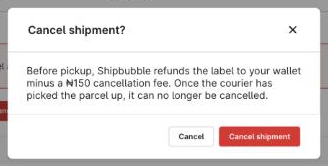
Click Cancel shipment to ask Shipbubble to cancel. If Shipbubble agrees, the status changes to Cancelled and the order delivery to Cancelled where Shopware allows it. If Shipbubble refuses, its reason is shown on the card and the status stays as it was:
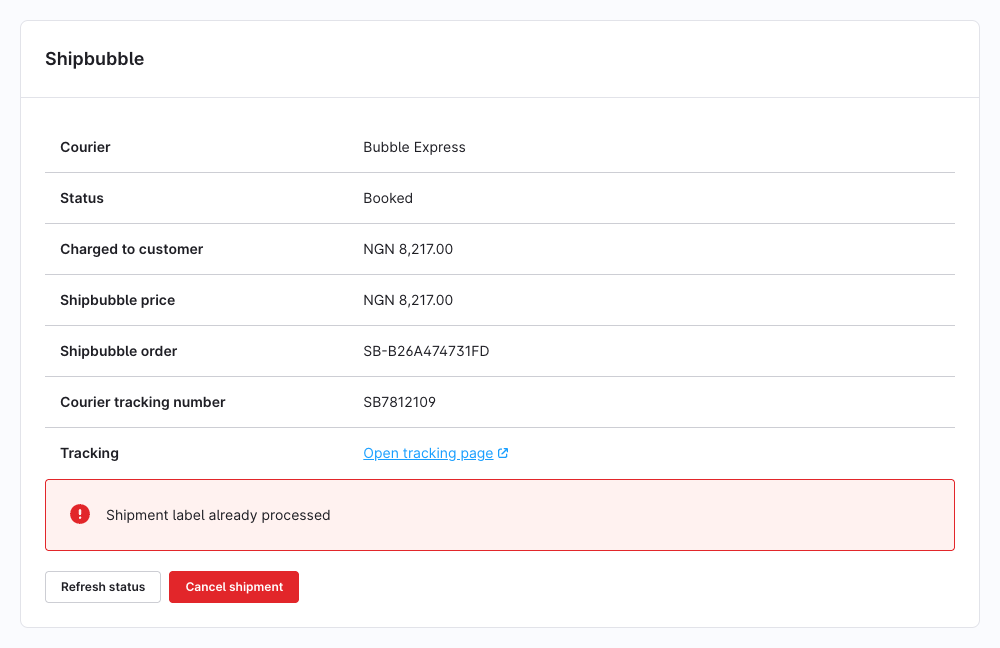
Shipbubble's terms: before pickup, the label is refunded to your Shipbubble wallet minus a ₦150 cancellation fee; once the courier has picked the parcel up, it can no longer be cancelled.
Cancelling the shipment doesn't cancel or refund the customer's order — do that in Shopware as usual.
How the order's delivery status follows Shipbubble
Shipbubble's status updates move the order delivery status using Shopware's own states. The order status and the payment status are never touched.
| Shipbubble reports | Order delivery status |
|---|---|
| Picked up, In transit | Shipped |
| Delivered | unchanged (stays Shipped; Shopware has no delivered state) |
| Returned | Returned |
| Cancelled | Cancelled |
A change the current delivery status doesn't allow — for example cancelling a delivery that is already shipped — is skipped and logged. When the delivery becomes Shipped, Shopware's own shipped email goes out if you use it, so the plugin doesn't add a separate picked up or in transit email.
Tracking for the customer
After booking, the Shipbubble order id is added to the order delivery's tracking codes. The shipping method's tracking URL is https://trackshipment.shipbubble.com/shipment/%s, so Shopware turns the code into a link in Account → Orders and in its order and shipping emails. The plugin's tracking email links to the same page.
Flows
Five flows are installed active. Open Settings → Flow Builder to edit, switch off or delete them (Shopware: Flow Builder):
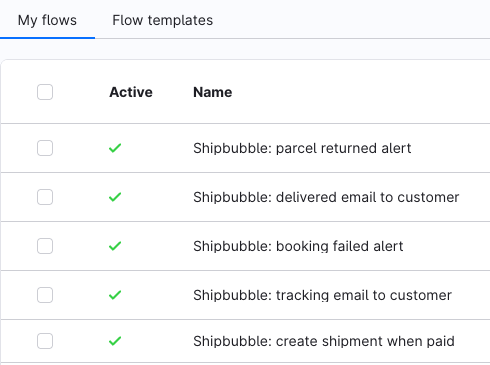
| Flow | Trigger | Does | Email subject |
|---|---|---|---|
| Shipbubble: create shipment when paid | Payment enters status paid | Books the customer's courier (charged to your wallet) | — |
| Shipbubble: tracking email to customer | Shipment booked (kmh_shipbubble.shipment.created) | Emails the customer the courier and tracking link | Your order 10034 is booked with Bubble Express |
| Shipbubble: booking failed alert | Booking failed (kmh_shipbubble.shipment.failed) | Emails the shop admin Shipbubble's reason | Shipbubble shipment for order 10034 could not be booked |
| Shipbubble: delivered email to customer | Delivered (kmh_shipbubble.shipment.delivered) | Confirms the delivery to the customer | Your order 10034 has been delivered |
| Shipbubble: parcel returned alert | Returned (kmh_shipbubble.shipment.returned) | Tells the shop admin a parcel is coming back | Parcel for order 10034 is being returned |
The admin alerts go to the shop's admin email address (Shopware's admin recipient in the Send email action). Edit the texts under Settings → Shop → Email templates — the templates are called Shipbubble: shipment created, booking failed, shipment delivered and parcel returned, in English and German (Shopware: Email templates). For other languages Shopware falls back to the system default language unless you add a translation.
To stop a flow, switch it off rather than deleting it: an update or reactivation of the plugin creates a deleted flow again, but leaves edited and switched-off flows alone.
Booking only after you've checked the order
Switch off Shipbubble: create shipment when paid if you want to look at each order first, then book with Create shipment on the order.
Triggers you can use
All seven Shipbubble triggers are available for your own flows — for example an SMS with the SMS plugin when the parcel is in transit:
| Trigger | When |
|---|---|
kmh_shipbubble.shipment.created | The shipment was booked |
kmh_shipbubble.shipment.failed | Booking failed |
kmh_shipbubble.shipment.picked_up | The courier picked the parcel up |
kmh_shipbubble.shipment.in_transit | The parcel is on its way |
kmh_shipbubble.shipment.delivered | Shipbubble reports it delivered |
kmh_shipbubble.shipment.returned | The parcel is being returned |
kmh_shipbubble.shipment.cancelled | The shipment was cancelled |
Each provides the order and the variables courierName, trackingUrl, status and errorMessage for email templates. In the Flow Builder list these triggers are currently shown by their technical names — see Known issues.
Action: Create Shipbubble shipment
The action Create Shipbubble shipment books every delivery of the order that isn't booked yet, with the customer's chosen courier. A delivery that needs a new price is left for you to confirm on the order. Use it in your own flow, for example on Order enters status in progress instead of paid.