

Appearance
Handle deliveries: in transit, code, photo, shipped
For merchants
Where: Orders → Overview → order → General tab. The plugin adds two cards below the line items: Delivery verification and Delivery price breakdown.
The flow at a glance
text
Order placed ──► staff set delivery status "In transit"
                   ├─ a delivery code (OTP) is generated
                   └─ customer email "Your order … is on its way" with the code
                         │
At the door: rider enters the customer's code ─┐
             and/or attaches a hand-over photo ┴─► requirement met?
                                                    ├─ delivery status → "Shipped" (automatic)
                                                    └─ code verified → email "Your order … has been delivered"
1. Set the delivery to In transit
When the rider leaves, change the order's delivery status to In transit in the order's status area (Shopware: Orders). Allowed from Open and Shipped partially; from In transit the delivery can go to Shipped or Cancelled.
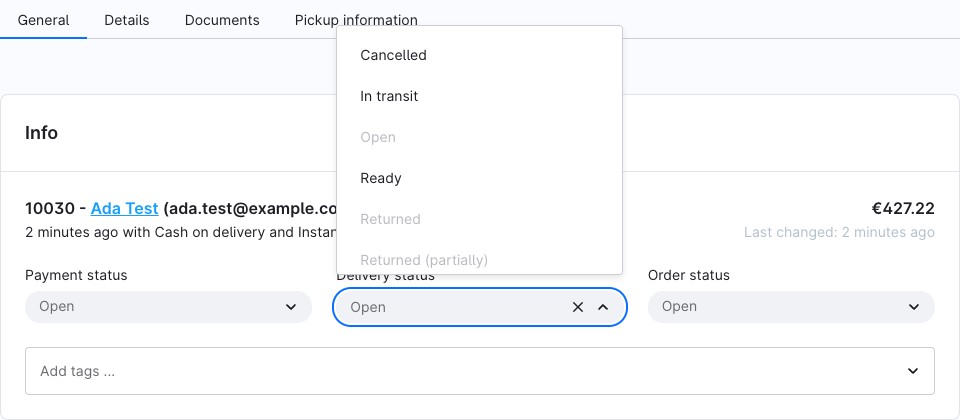
With Enable delivery OTP on, entering In transit generates a delivery code:
- 4–10 digits (OTP length), valid for OTP validity minutes from now.
- Stored only as a secure hash — nobody, including your staff, can read it back. It appears only in the email (or whatever your flow sends).
- One code per order: if the order already has a delivery-verification record, no new code is generated — use Resend code instead.
Any shipping method
The In transit status and the delivery code work for every order, not only Instant Delivery orders. If you use In transit for orders sent with a parcel carrier, those customers receive a delivery code too. Disable or adjust the order on its way flow if that is not wanted.
2. Verify at the door
The Delivery verification card is used by the rider (on a phone or tablet logged into the Administration) or by staff the rider calls.
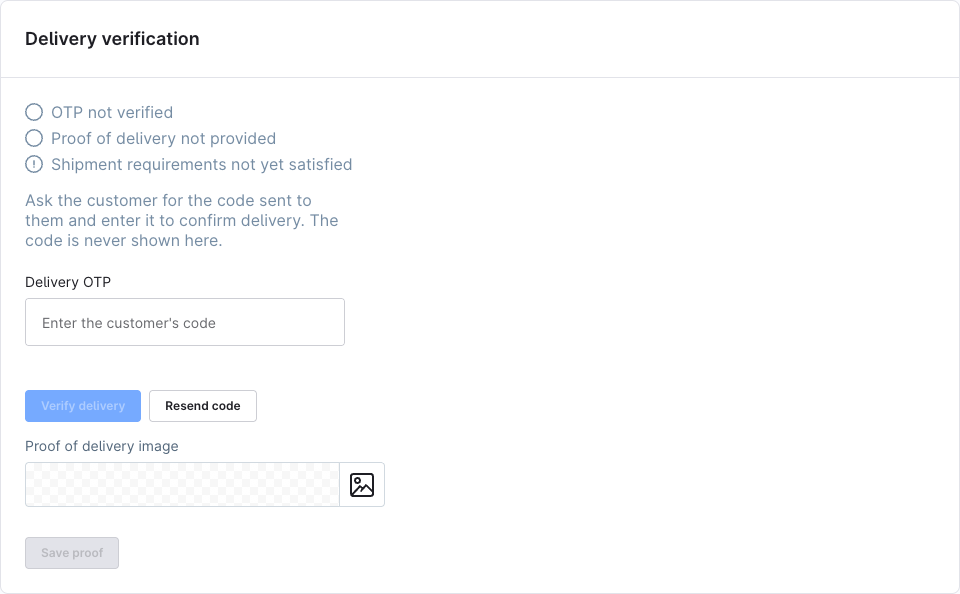
Enter the code
- Ask the customer for the code from their email.
- Type it into Delivery OTP and click Verify delivery (or press Enter).
| Message | Meaning |
|---|---|
| Delivery verified. | Correct code. The record is marked verified; the delivery confirmed flow runs. |
| Incorrect code. Please try again. | Wrong code; one attempt used. Letters, spaces or an empty entry are refused without using an attempt. |
| This code has expired. | Validity time is over. Click Resend code. |
| Too many attempts. The code is locked. | Max verification attempts reached. Click Resend code. |
| This delivery was already verified. | A code can only be used once. |
| No OTP found for this order. | No code exists for the order (e.g. OTP was disabled when the delivery went in transit). |
The form appears only while the delivery is In transit, a code exists and it isn't verified yet. When a code has expired, the card shows This delivery code has expired. Resend a new code to the customer.
Resend code
Resend code generates a new code with a new validity period, resets the attempt count, makes the previous code invalid and runs the order on its way flow again — the customer receives a new email. Not possible once the delivery was verified.
Attach a proof-of-delivery photo
With Enable proof of delivery image on and the delivery In transit:
- In Proof of delivery image, upload a photo (or select one).
- Click Save proof.
The photo must be an image that was uploaded after the order was placed — an existing catalogue picture or another order's photo is refused (This image was uploaded before the order was placed. Upload a new photo of the delivery.). Photos are stored in Shopware's media library and only referenced from the order. Once saved, the card shows the photo read-only.
3. Shipped automatically
After each verified code and each saved photo the plugin checks the Automatic shipped verification requirement:
| Requirement | Ships when |
|---|---|
| OTP only (default) | the code is verified |
| Proof of delivery image only | a photo is saved |
| OTP and proof of delivery image | both |
| OTP or proof of delivery image | either |
With Enable proof of delivery image off, every requirement counts as OTP only.
When the requirement is met and Set order state to shipped on verification is on, every delivery of the order that can move to Shipped is set to Shipped through Shopware's normal status workflow (deliveries already shipped or cancelled are skipped). With the switch off, the evidence is recorded and the card shows Shipment requirements satisfied — automatic shipping is off; set the status by hand.
The card's status lines show OTP verified / not verified, Proof of delivery provided / not provided (if photos are enabled) and Shipment requirements satisfied / not yet satisfied (with — delivery shipped once shipped).
Shipping by hand
Setting a delivery to Shipped in the status field never requires a code or photo — Shopware's status workflow allows it. Use the card if you want proof.
What the card shows before and after
| Situation | Card |
|---|---|
| Delivery not yet in transit | Not in transit yet — the code is generated when the status is set to In transit |
| Delivery shipped, returned or cancelled without any verification | No delivery verification |
| Both Enable delivery OTP and Enable proof of delivery image off | Delivery verification disabled |
After the correct code is entered, with OTP only as the requirement:
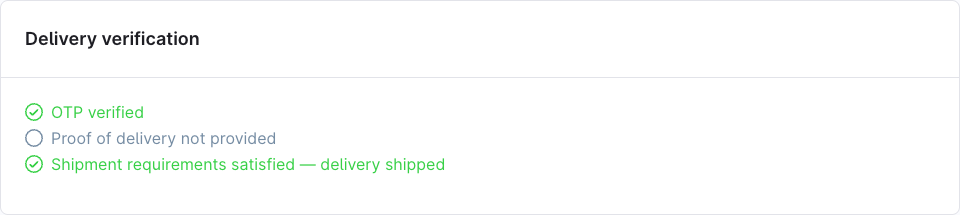
The card refreshes itself when the delivery status is changed on the page. It looks at the order's first delivery and reads the plugin settings of All Sales Channels (see Configuration). Its buttons need the permission Last-Mile Delivery for Shopware 6 → Manage.
The delivery price breakdown
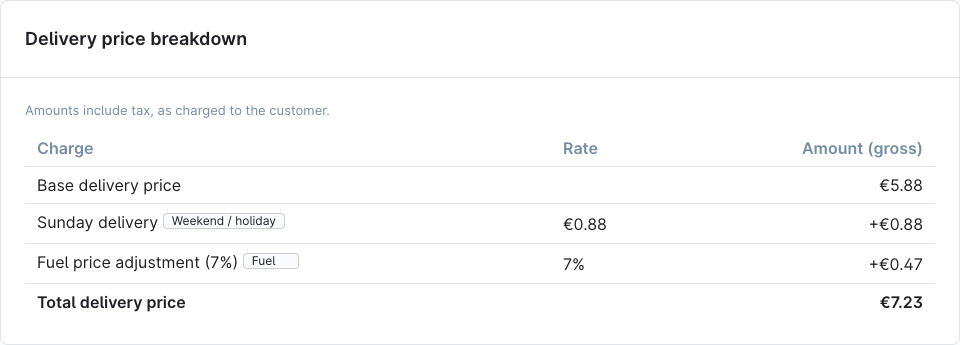
For orders placed with Instant Delivery, the Delivery price breakdown card shows what was calculated at checkout, frozen at the moment of ordering:
- Base delivery price — from the matching price rule.
- One line per surcharge — its name, type label and rate (percentage or fixed amount) and the amount added.
- Total delivery price.
Amounts are in the order's currency and labelled gross, net or tax-free to match how the customer was charged. If the order's shipping cost was later changed in the Administration, the card says The shipping cost was changed after the order was placed and is now … The breakdown below shows the original calculation. Changing price rules or surcharges later never changes a placed order's breakdown. Orders without Instant Delivery show no card.
Emails and flows
Two flows are installed, active, under Settings → Flow Builder:
| Flow | Trigger (technical event) | Sends | Mail template type |
|---|---|---|---|
| Delivery OTP: order on its way | kmh_lastmiledelivery.order_otp.generated — code generated (In transit, or Resend code) | Your order {number} is on its way with the code and its expiry | Delivery OTP — order on its way |
| Delivery OTP: delivery confirmed | kmh_lastmiledelivery.order_otp.verified — code verified | Your order {number} has been delivered | Delivery confirmed |
Both send to the order's customer. Edit the texts under Settings → Shop → Email templates (English and German are installed; add other languages yourself). The sender name is the storefront name. In the order on its way template you can use:
| Variable | Content |
|---|---|
{{ order }} | The order, e.g. {{ order.orderNumber }}, {{ order.orderCustomer.firstName }} |
{{ otp }} | The plain delivery code — only available in this trigger |
{{ otpExpiresAt }} | Expiry of the code as an ISO 8601 string (see below) |
The default templates format the expiry as a localised date and time:
twig
{{ otpExpiresAt|format_datetime('medium', 'short', locale='en-GB') }}A third trigger, kmh_lastmiledelivery.order_delivery.in_transit, fires each time a delivery enters In transit, with the order only (no code). No flow is installed for it; with OTP disabled, build a flow on it if you still want an on its way email.
Proof of delivery and the confirmation email
The delivery confirmed email is sent only when a code is verified. A delivery confirmed by photo alone — Proof of delivery image only, or OTP or proof… satisfied by the photo — is shipped but sends no confirmation email. Build a flow on Shopware's delivery-status trigger (Shipped) if you need one.
Customise or switch off these flows like any other (Shopware: Flow Builder). The flows are created only once — if you delete one, it is not recreated as long as another flow on the same trigger exists; with no flow left on the trigger, the next plugin update or activation recreates it.
The flows are a Shopware feature, so the code can just as well be sent by SMS with an SMS action (for example the SMS plugin) on the code generated trigger, using {{ otp }} in the text.