

Appearance
Stock per product
For merchants
You enter how many pieces of a product each warehouse holds. Shopware's Stock field then shows the total of the active warehouses.
You can also import the quantities from your ERP. See Developer docs → Importing stock.
Enter quantities for a product
- Catalogues → Products, open a product without variants (or a single variant).
- On the General tab, find the Warehouse stock card.
- Enter a quantity for each warehouse.
- Click Save at the top right.
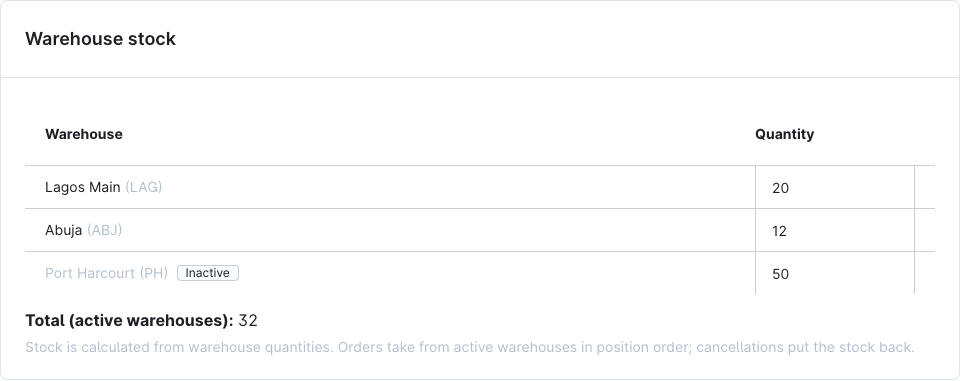
The card lists every warehouse, by position, with its code in brackets. Inactive warehouses are greyed out and marked Inactive. Total (active warehouses) shows what the Stock field will be after saving.
- Quantities are saved with the product's own Save button. Leaving the page without saving drops them.
- Quantities cannot be negative. An empty field counts as
0. - The card shows No warehouses yet with a Manage warehouses button until you create a warehouse.
The Stock field becomes read-only
As soon as a product has a quantity in any warehouse, its Stock field (in the Deliverability card) is read-only with the help text Calculated from warehouse stock quantities. The plugin overwrites it with the warehouse total, so a manual change would be lost.
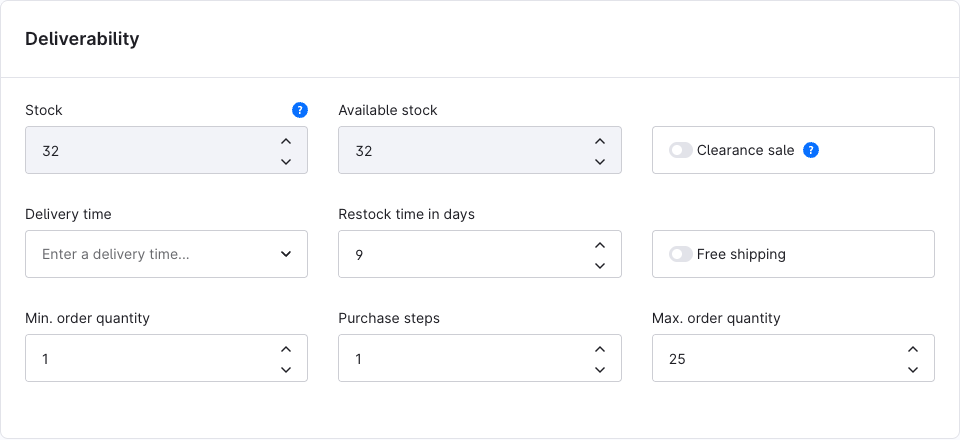
This holds even if all its quantities are in inactive warehouses. The Stock is then 0.
Products without any warehouse quantity keep a normal, editable Stock field.
Products with variants
On a parent product with variants, the Warehouse stock card lists the variants instead of the warehouses.
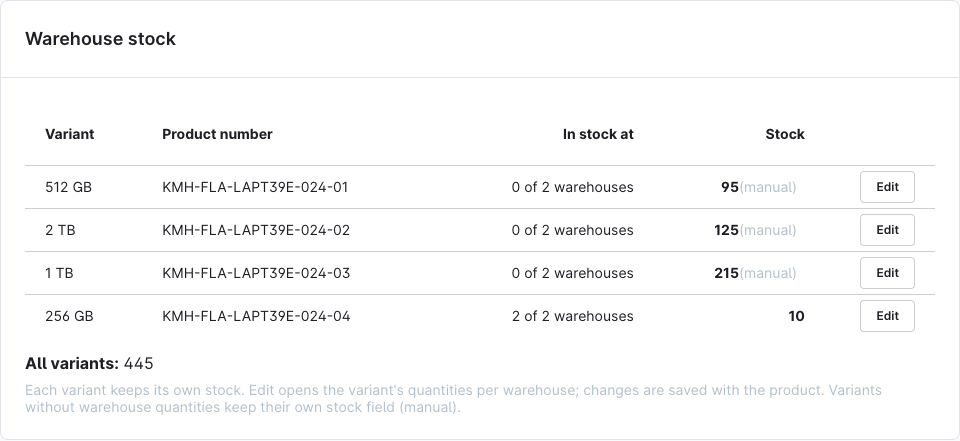
| Column | Shows |
|---|---|
| Variant | The variant's options, e.g. Blue / M |
| Product number | The variant's product number |
| In stock at | How many active warehouses hold at least one piece, e.g. 2 of 3 warehouses |
| Stock | The variant's active-warehouse total. Variants without any warehouse quantity show their own Stock field, marked (manual) |
All variants below the list is the sum of the Stock column.
To change a variant's quantities:
- Click Edit on the variant's row. A dialog lists the warehouses for that variant.
- Enter the quantities and click Apply. Cancel or closing the dialog drops the changes.
- Click Save on the parent product. The parent and every changed variant are saved together.
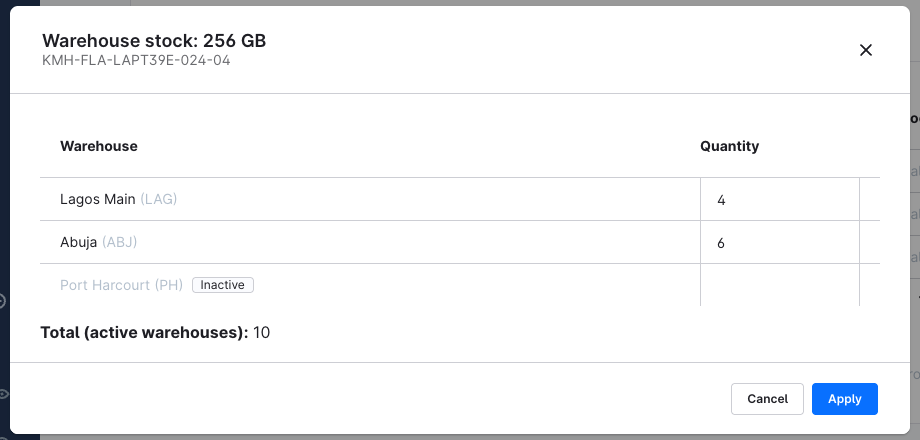
A variant with no warehouse quantities yet shows a note in the dialog: it uses its own stock field until you enter a warehouse quantity. After that its stock is the active-warehouse total.
The parent's own Stock field is always read-only, with the note that each variant has its own stock. Shopware never uses a parent's stock when a customer buys a variant.
The card loads up to 500 variants of a product.
Warehouse stock in the product list
Catalogues → Products has a Warehouse stock column after Available stock. It shows CODE: quantity for each warehouse the product has a quantity in, by position. Inactive warehouses are greyed out.
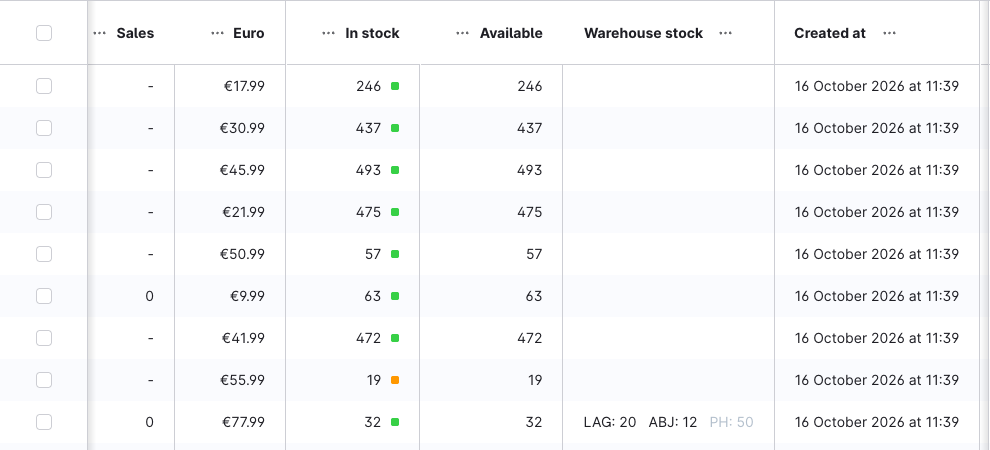
Hide the column with the list's column settings. It cannot be sorted.
Go back to a manual stock
The Administration cannot remove a product's warehouse quantities, and setting them to 0 keeps the product warehouse-managed. To manage a product's stock by hand again, a developer deletes its kmh_warehouse_stock rows through the API. The Stock is then 0 and editable again.
Permissions
Without the Warehouse stock → Viewer permission, the card and the list column are hidden. See Installation → Permissions.