

Appearance
Warehouses
For merchants
A warehouse is a named place that holds stock. You create one per real stock location: a store, a depot, a supplier's drop-ship stock.
Where: Settings → Warehouses. You need the Warehouses permissions — see Installation → Permissions.
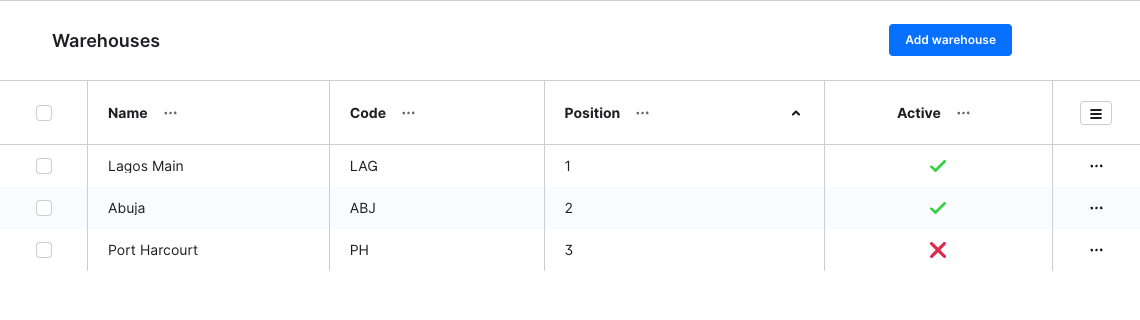
The list shows Name, Code, Position and Active, sorted by position.
Add a warehouse
- Settings → Warehouses → Add warehouse.
- Fill in the fields and click Save.
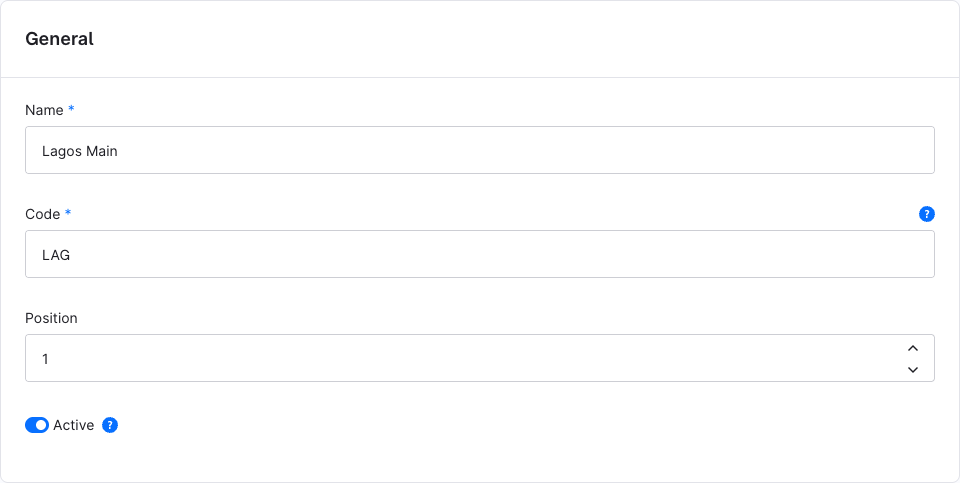
| Field | Required | What it does |
|---|---|---|
| Name | Yes | Shown to shoppers on the product page and to staff in the Administration. Translatable. |
| Code | Yes | Short identifier, e.g. LAG. Must be unique. Your ERP uses it to refer to the warehouse. The product list column shows it. |
| Position | No (default 0) | The order warehouses are used in. Lower numbers come first: orders take from them first, and they are listed first. |
| Active | No (default on) | Only active warehouses count towards the product stock, are taken from by orders and are shown in the storefront. |
A new warehouse is always created in your default language. To translate the name, open the saved warehouse and use the language switch at the top.
If saving fails with The warehouse could not be saved. Is the code unique?, another warehouse already uses that code, or a required field is empty.
Set the order with Position
Orders take stock from the warehouse with the lowest position first. They move to the next one only when the first is empty. Give your main warehouse the lowest number.
Example: Lagos has position 1 and 3 pieces, Abuja has position 2 and 5 pieces. An order for 4 takes 3 from Lagos and 1 from Abuja.
Two warehouses with the same position are used in the order they were created. Changing a position does not change the product stock.
Details: How orders take stock.
Switch a warehouse off
Turn Active off and click Save. Then:
- Its quantities stay stored but no longer count towards the product Stock.
- Orders no longer take from it.
- The storefront no longer lists it.
- In the Administration it is greyed out with the label Inactive. You can still edit its quantities.
The product stock of every product in that warehouse is recalculated in the background. A message queue worker must be running, otherwise the stock keeps the old totals — see Installation → Queue. Switching the warehouse on again works the same way.
Delete a warehouse
In the list, open the ⋯ menu of the warehouse and choose Delete, or select several and delete them together. You need Warehouses → Deleter.
Deleting a warehouse:
- deletes all its quantities;
- recalculates the product Stock of the affected products straight away. A product whose only stock was in this warehouse drops to
0; - deletes the record of which orders took stock from it. Cancelling those orders later puts nothing back into any warehouse for that part.
To keep the quantities, switch the warehouse off instead.
Not included
Warehouses have no address, opening hours or sales-channel assignment. A warehouse has a customFields field that your ERP or a developer can fill through the API. The warehouse page in the Administration does not show custom fields.